Thank you for your purchase of our WordPress Theme! We greatly appreciate your support. To assist you in setting up and managing your WordPress website, we have prepared comprehensive documentation that covers the entire process, starting from the very beginning. This documentation provides step-by-step instructions and guidance to ensure a smooth configuration and management experience. Please refer to the documentation for detailed information and instructions. Should you have any questions or need further assistance, our support team is always ready to help. Thank you again, and we wish you success with your WordPress website!
Introduction
We are grateful that you bought our WordPress theme. This article walks through a number of the procedures involved in setting up and maintaining a WordPress website.
Introduction
We are grateful that you bought our WordPress theme. This article walks through a number of the procedures involved in setting up and maintaining a WordPress website.
WordPress CMS: What is it?
WordPress is an open source platform for creating websites built on PHP and MySQL. It is a feature-rich content management system (CMS) and blogging platform that is completely free. You may make dependable websites and online apps with this CMS. You hardly need any technological knowledge or experience to operate it. WordPress's many features, including its flexibility and ease of use, have made it the most popular website construction tool on the market.Learn More
A Wordpress template: what is it?
For websites created using the WordPress content management system, a WordPress template acts as the skin. Setting up a WordPress template is really easy. With the help of a freshly installed template, you may quickly alter the look of your WordPress website. All the source files required to create a WordPress template are included, and you are free to modify and expand it as you see fit.
Before Installing and Activating a Theme — Important Checklist
1. Check WordPress Site Health Information
Before installing or activating a WordPress theme, make sure to check the following settings in your WordPress Dashboard. This will help avoid import failures and ensure all demo data, pages, and media can be imported properly.
Check Site Health Information
- Go to: Tools → Site Health
- Click on the Info tab
- Open the Server section
2. Increase Important PHP Server Limits
sure the following values are set as high as possible:
- PHP Time Limit — set to the maximum value
- PHP Memory Limit — increase to the highest available value
- Max Input Time — set to maximum
- Upload Max Filesize — increase to maximum (for theme demo media files)
- PHP Post Max Size — increase to maximum
If you are beginner and need a guide on how to get your Site Health to a max health then you can refer the below tutorial guide to Increase PHP Memory limits VIA CPanel:
The above guide will definitely help you to get your "WordPress Memory Limit Error" fixed. If you still face the same problem, we recommend you to contact our support team at support@cretathemes.com or Contact Us by Here .
Theme Installation
First, log in to your WordPress admin dashboard.
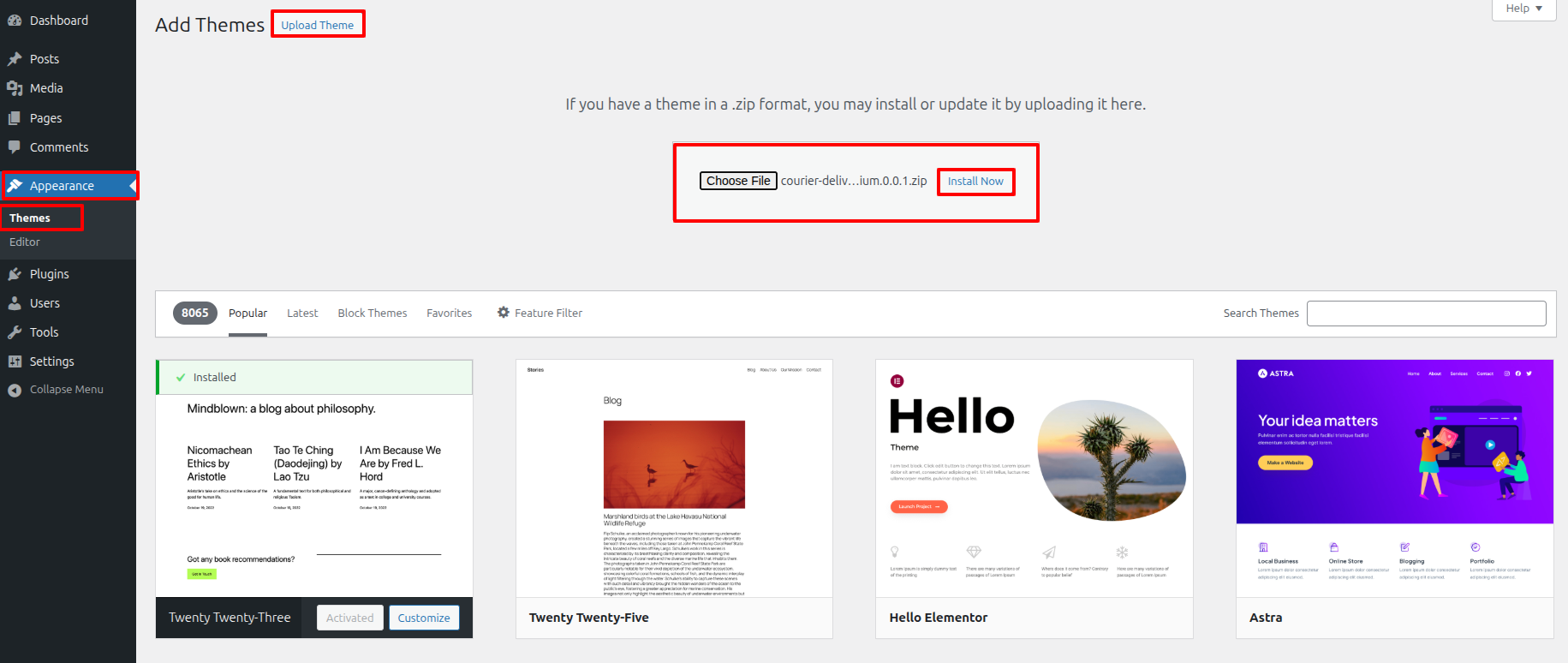
- Go to the menu Appearance > Themes and click the Add New Theme button.
- Once you are on the themes page, click on the "Add New" button.
- Select the Upload Theme button.
- Click the "Browse" button, select the Grocerymart Pro theme in your desktop, and then click the "Install"
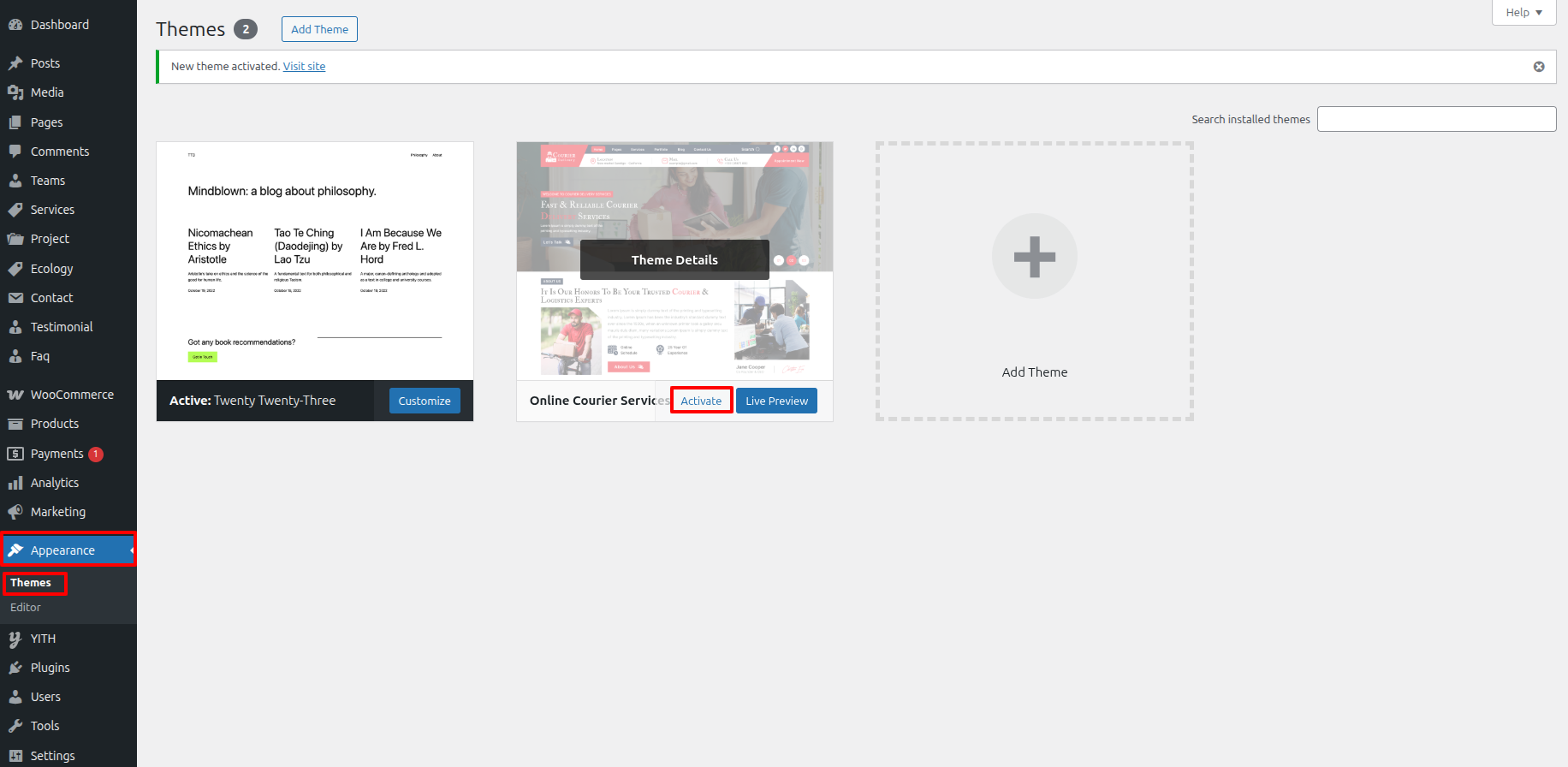
- WordPress will now proceed with installing your selected theme, and upon completion, you will see a success message that includes options to activate the theme or preview it live. Congratulations! Your theme has been successfully installed and set up.

Setup Wizard
Installation of Templates
Installing a template is a simple process.
Within the WordPress interface, all installation procedures may be completed. It facilitates a quick and comfortable process.
There are two ways to complete the installation process.
1-Using WordPress admin, install a theme.
To begin, sign into your WordPress admin dashboard and select
Press the "Upload Theme" button.
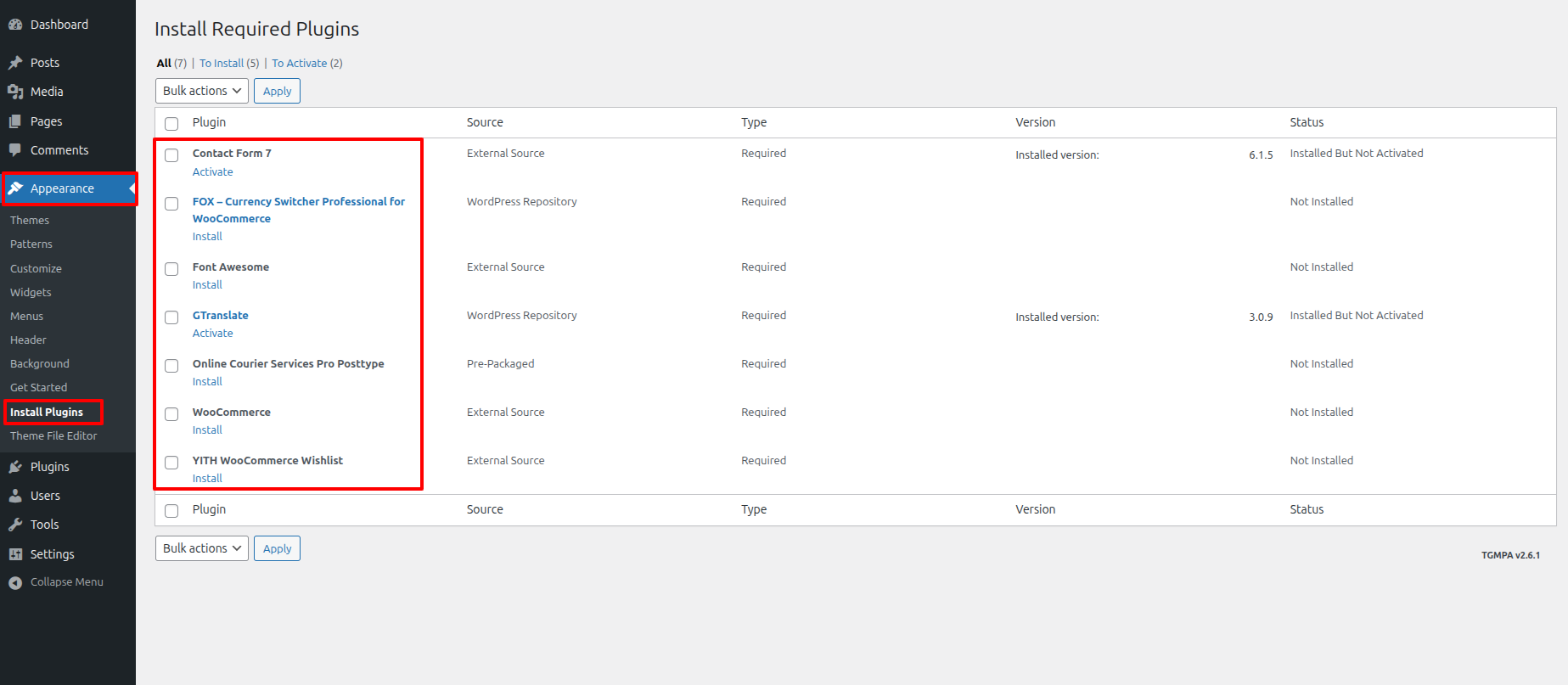
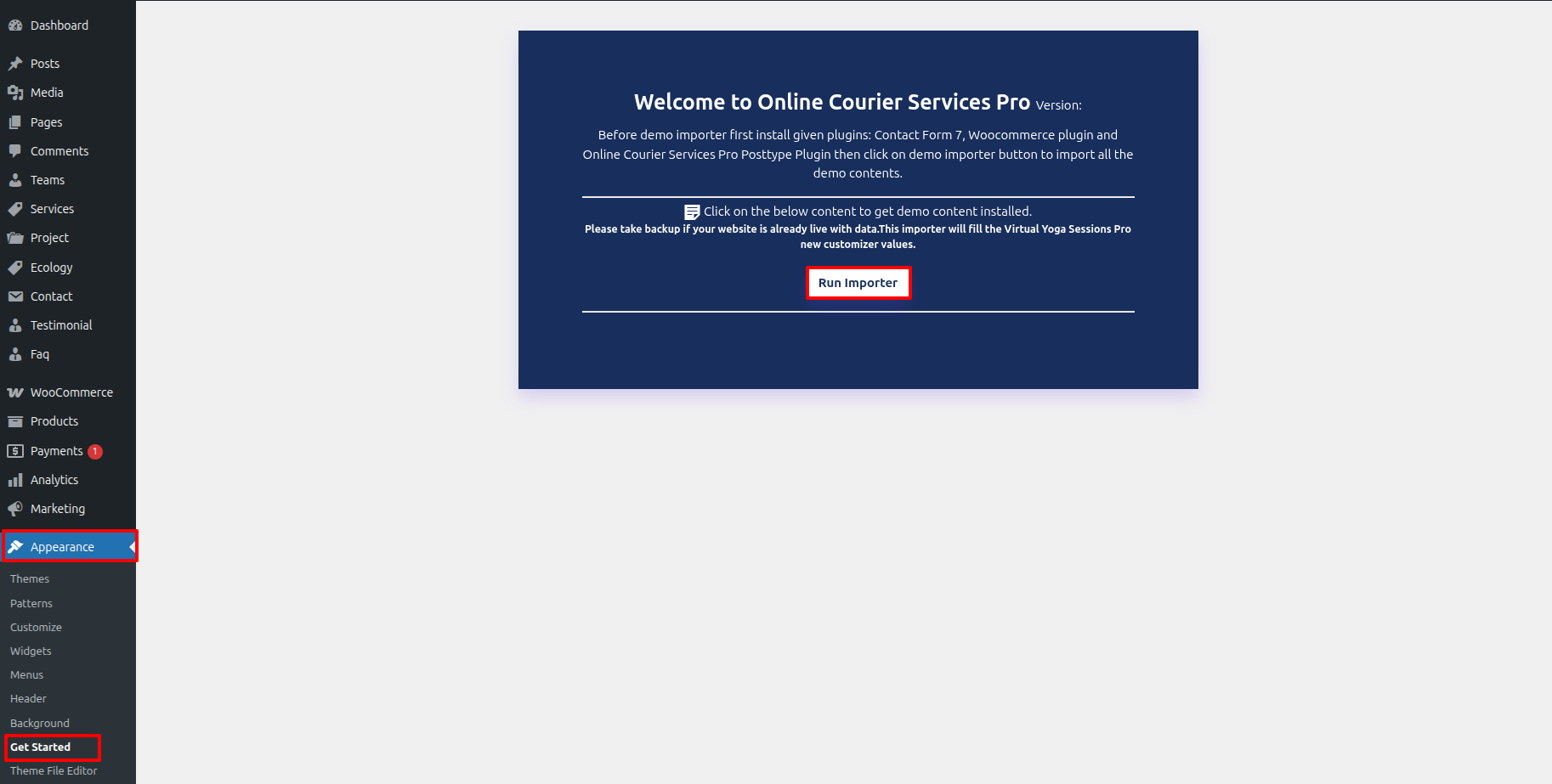
Follow the following steps to import content using Theme Wizard
Install Plugins.
Import Your Demo
Import your demo content based on Customizer.
Final Image Of HomePage.
You can refer this video for setup your demo content based on
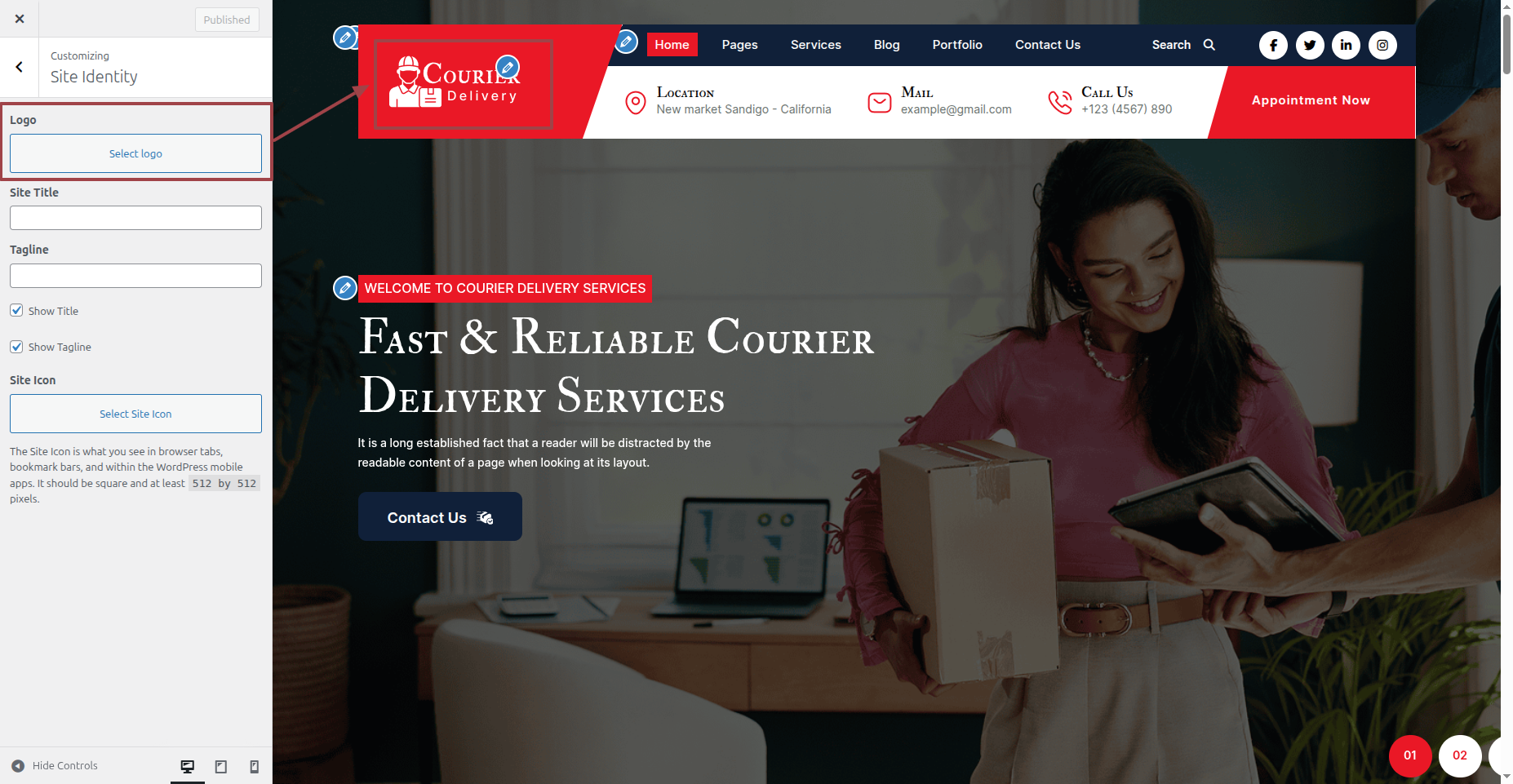
6.1 Setup Site Identity
Follow the procedures listed below to set up the Header Section.
Go to Appearance >> Customize >> Site Identity .
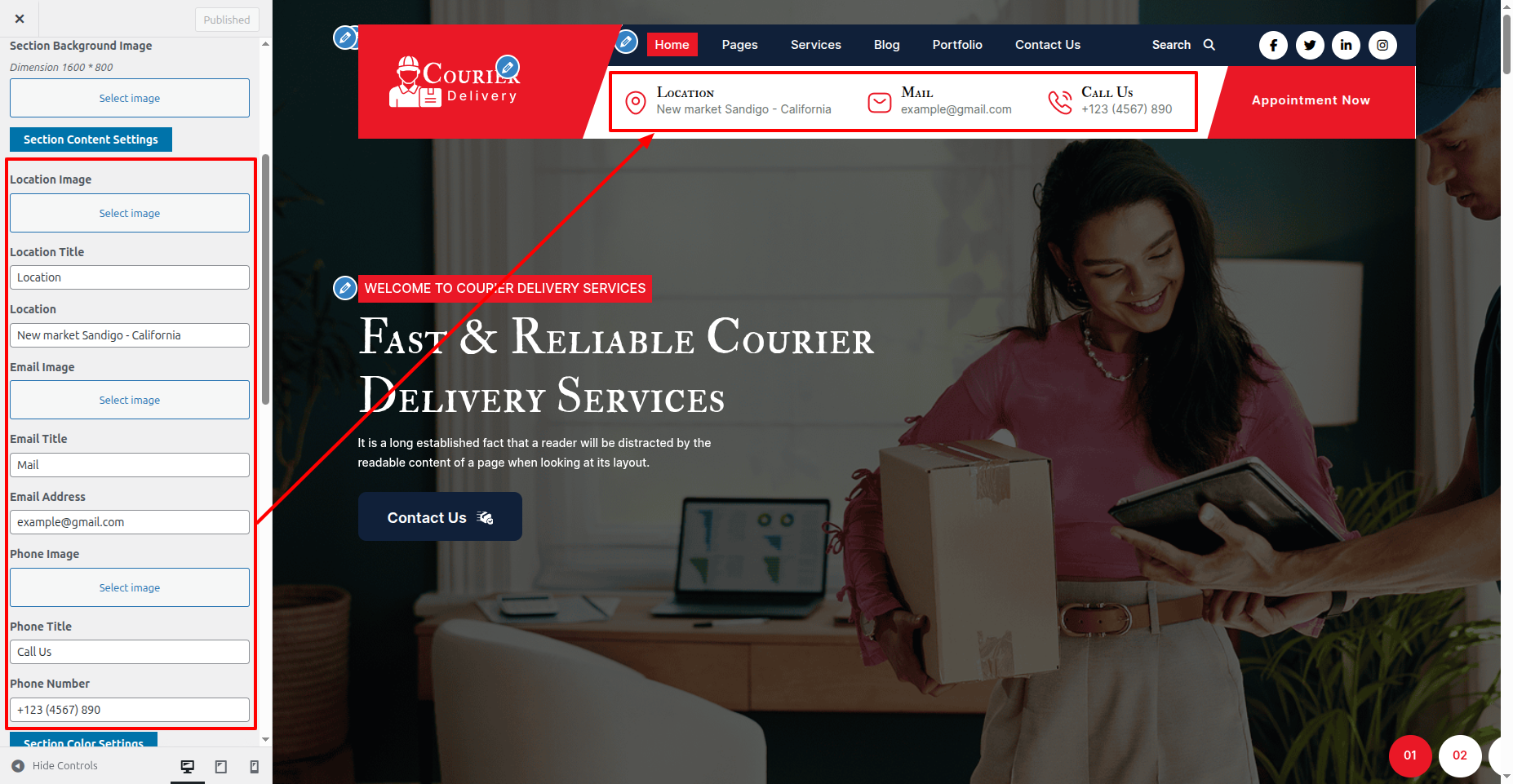
6.2 Setup Header Section
To proceed with the Header Menus Section.
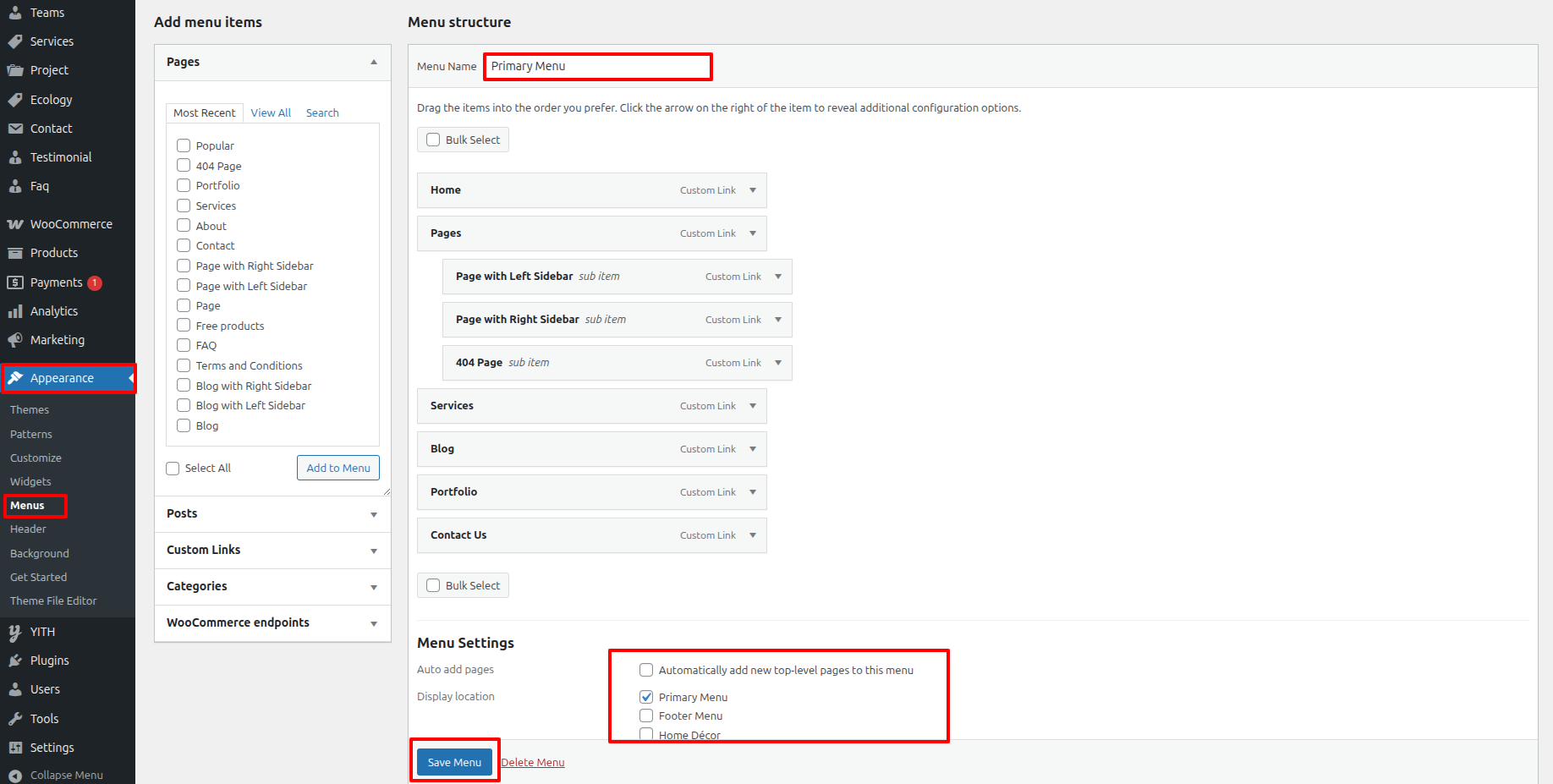
Go to Dashboard >> appearance >> Menu
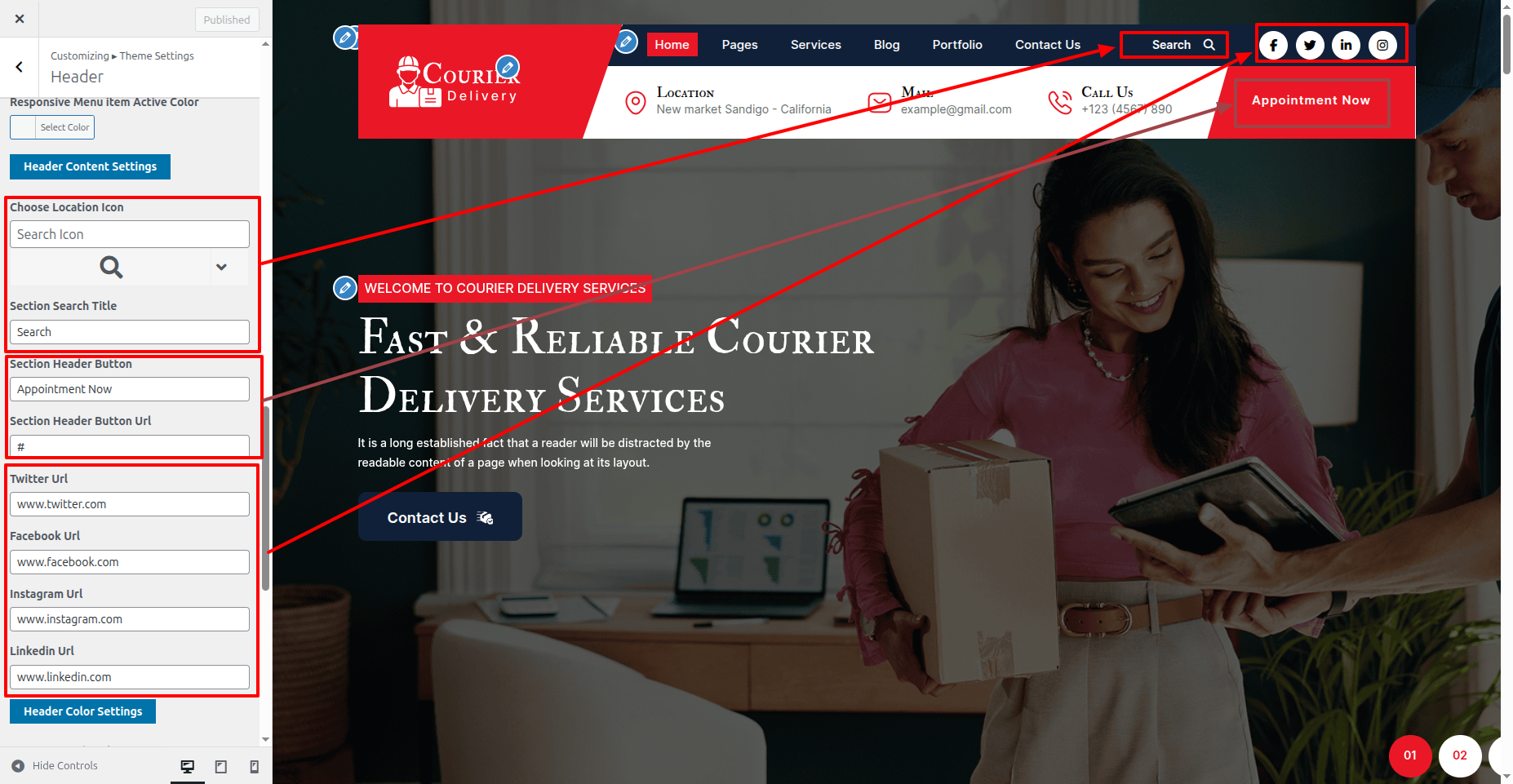
Follow the procedures listed below to set up the Header Section.
Go to Appearance >> Customize >> Theme Settings >> Header.
You can then include the Final header section in this manner.
6.3 Slider Section
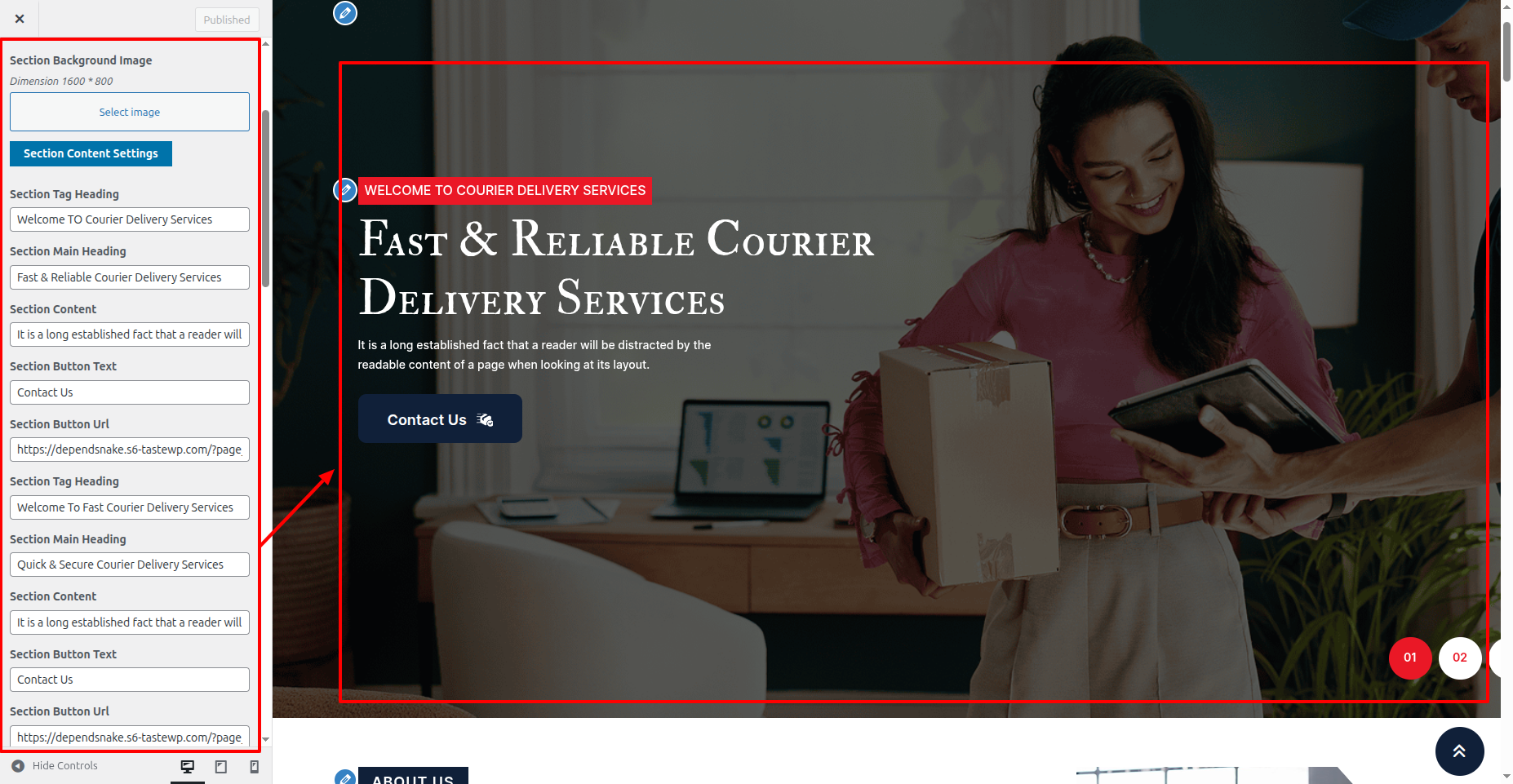
Follow the procedures listed below to set up the Slider Section.
Go to Appearance >> Customize >> Theme Settings >> Slider Section
Go to Appearance >> Customize >> Theme Settings >>Slider Section.
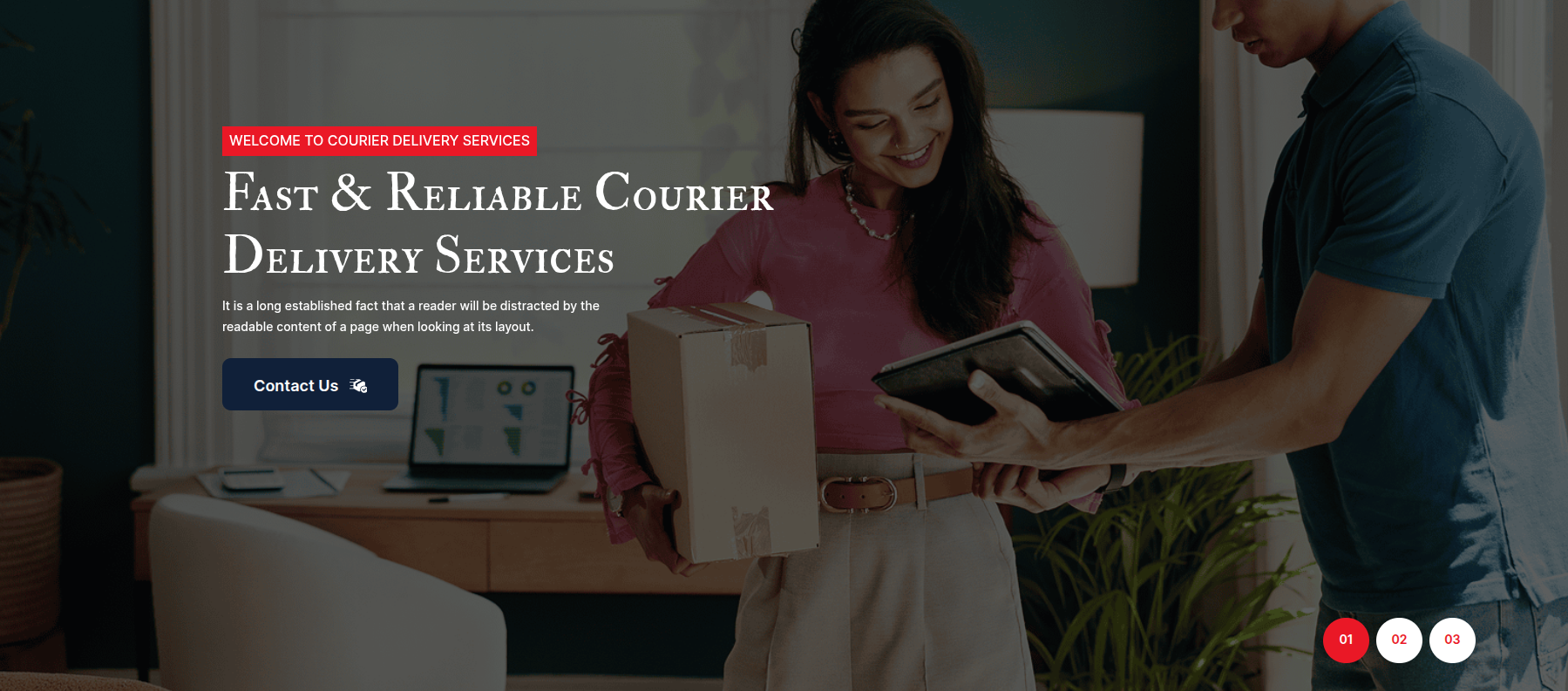
You can then include the Final Slider Section in this manner.
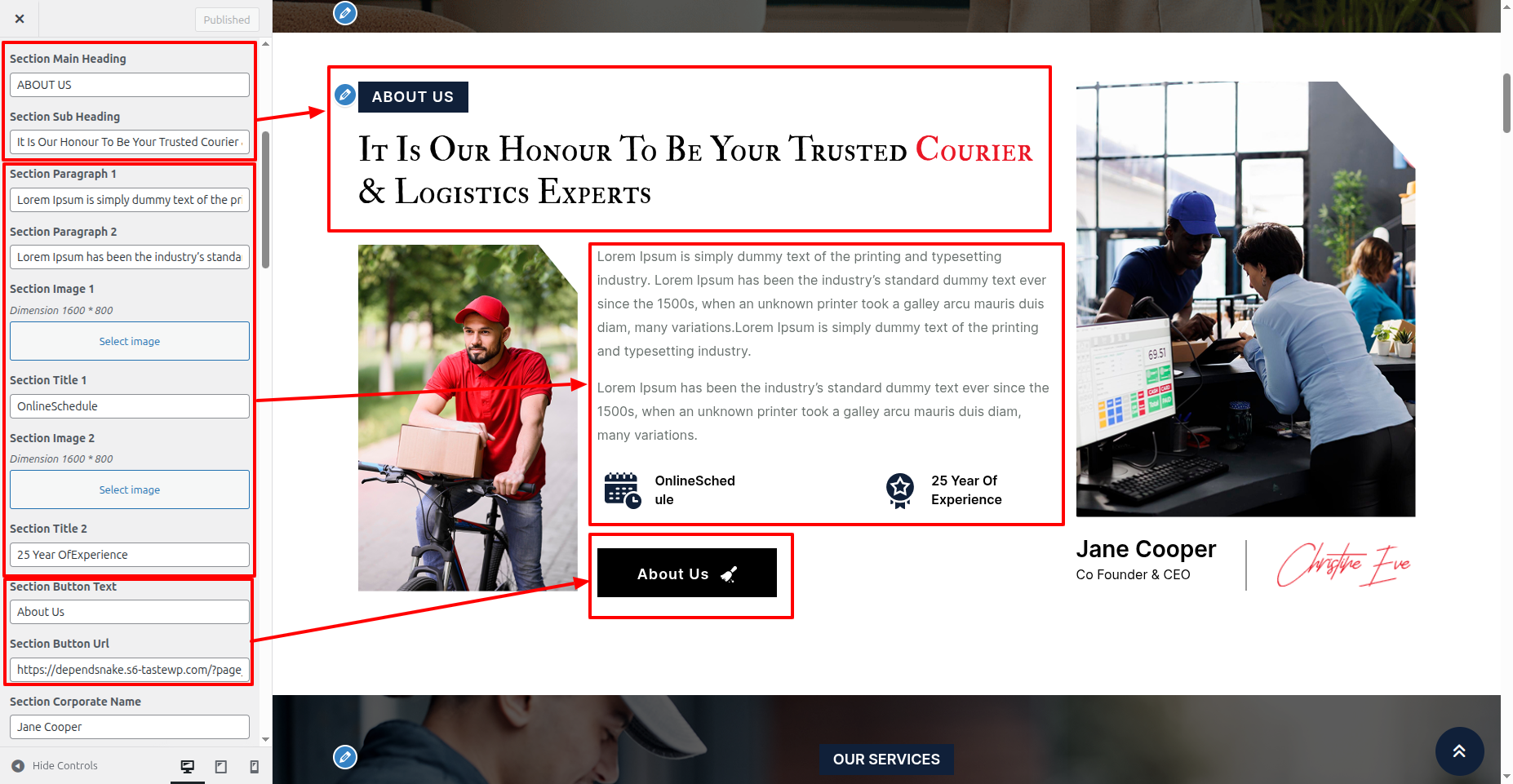
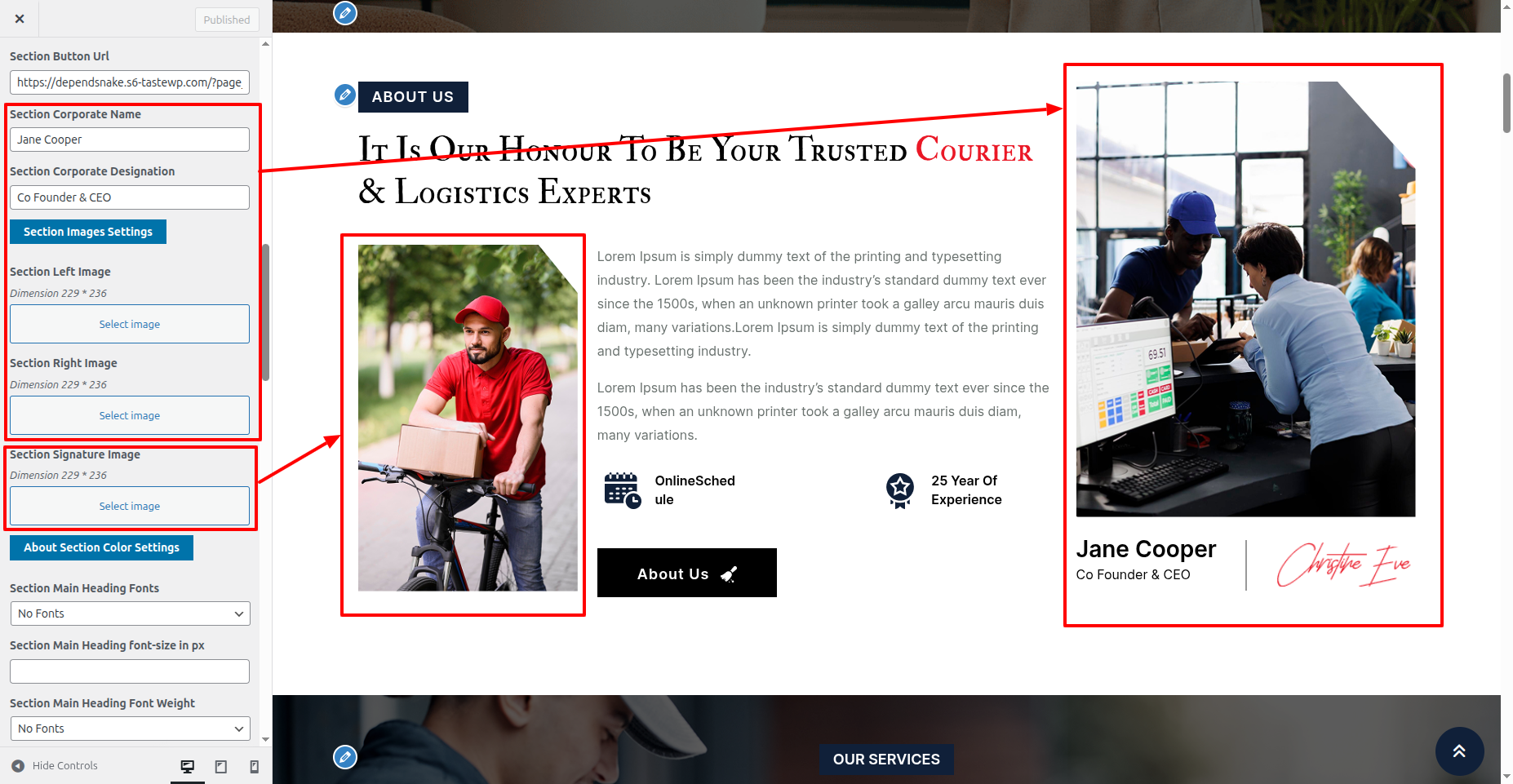
6.4 Abut Us Section
Go to Appearance >> Customize >> Theme Settings >>Abut Us Section
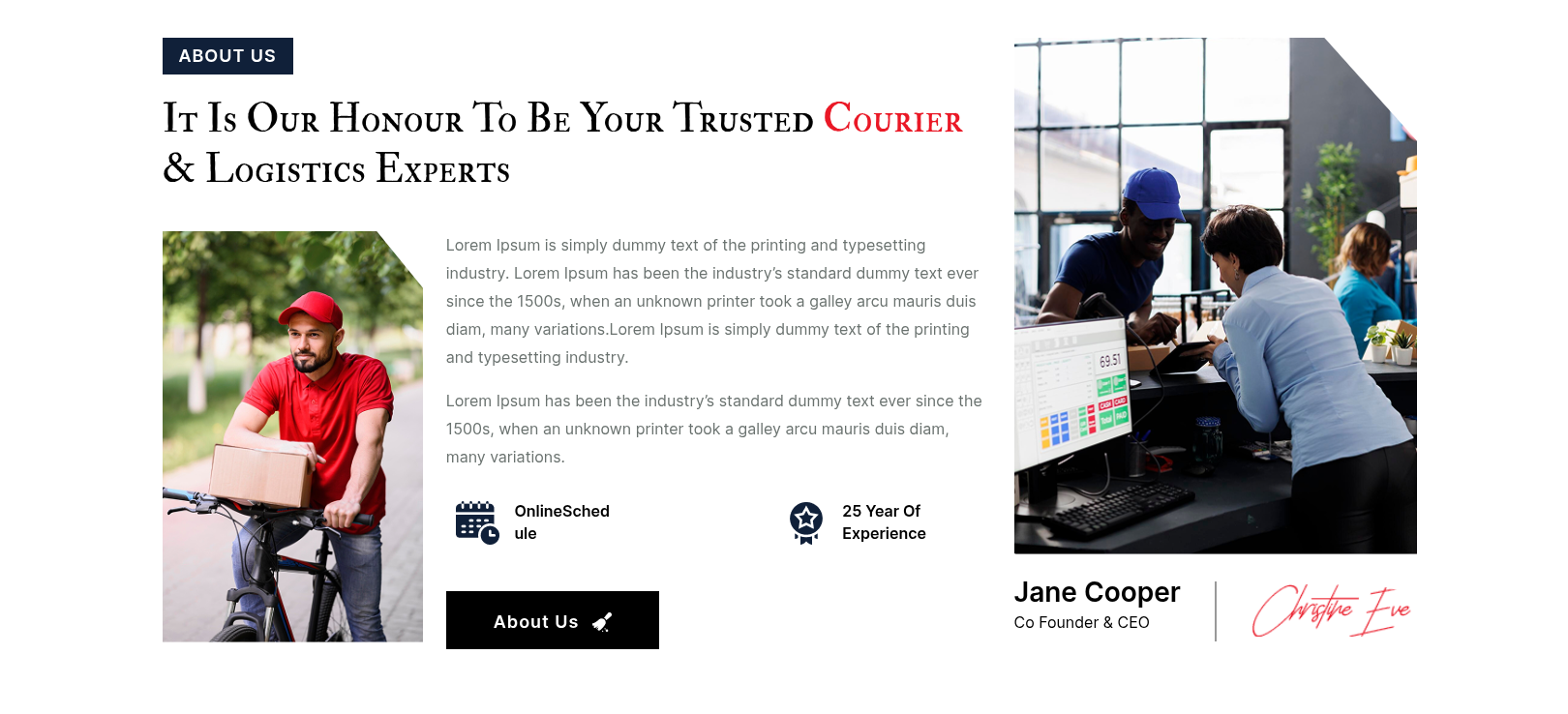
You can configure the Final Abut Us Section in this way.
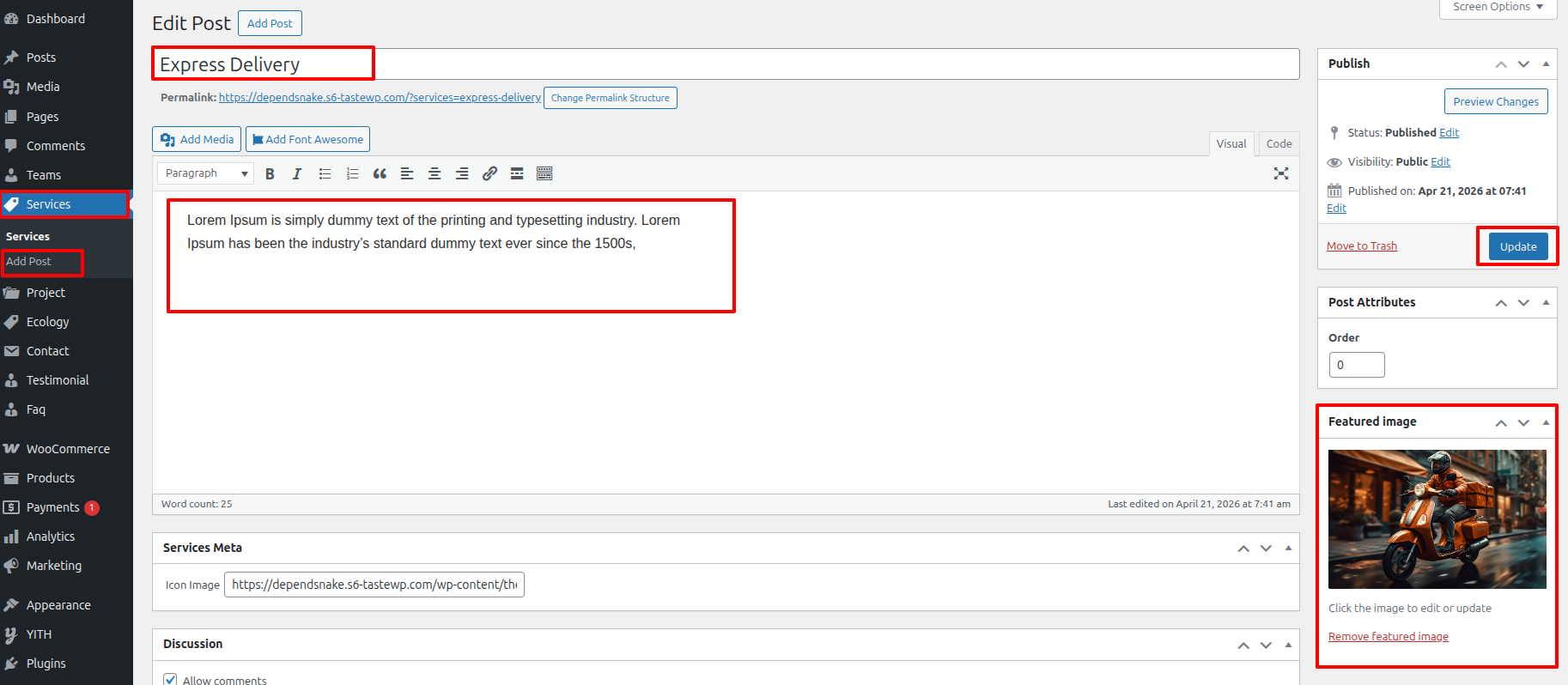
6.5 Our Services Section
To proceed with the Our Services Section
Go to Dashboard >>Services >> Edit
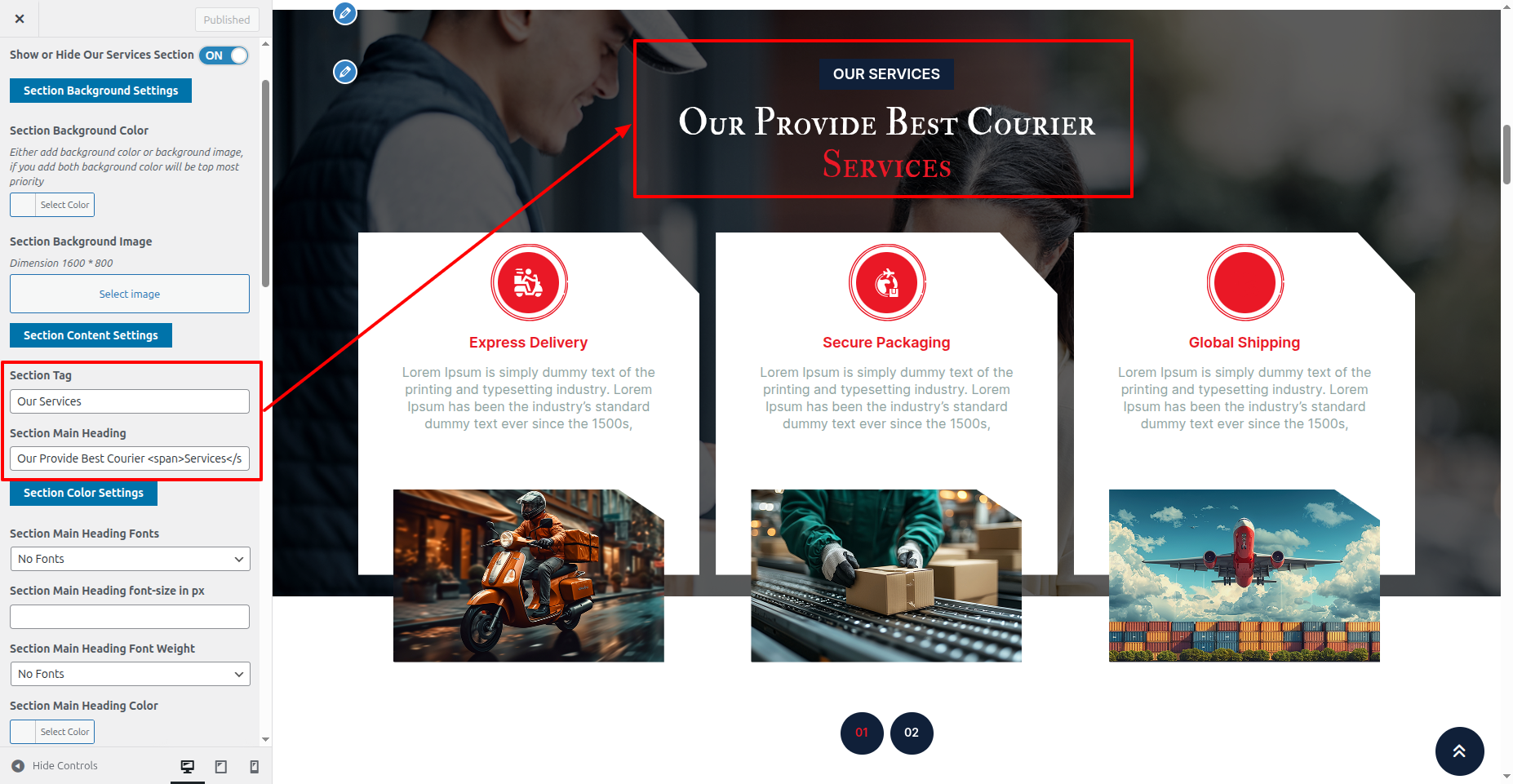
To proceed with the Our Services Section.
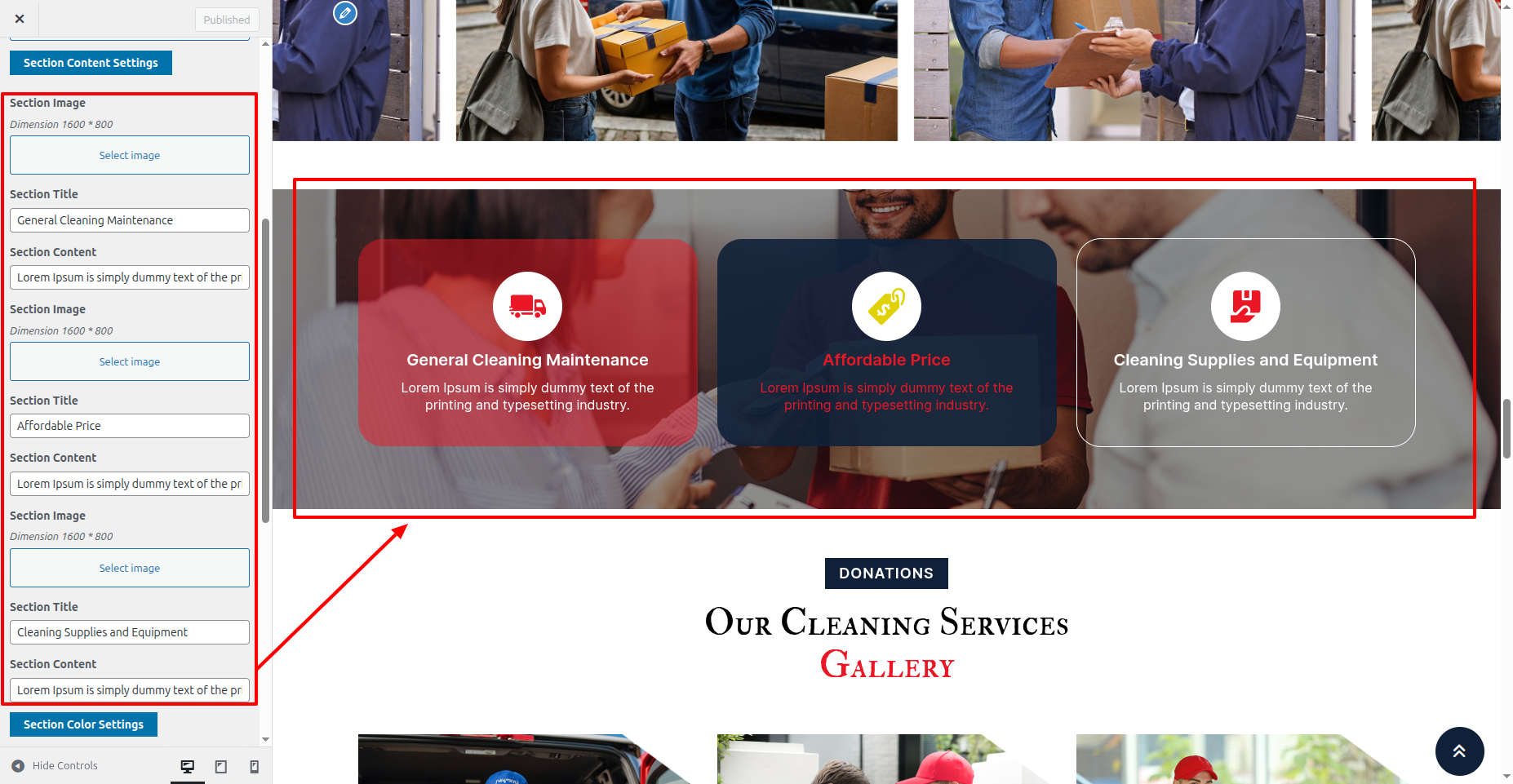
Go to Appearance >> Customize >> Theme Setting >> Our Services Section
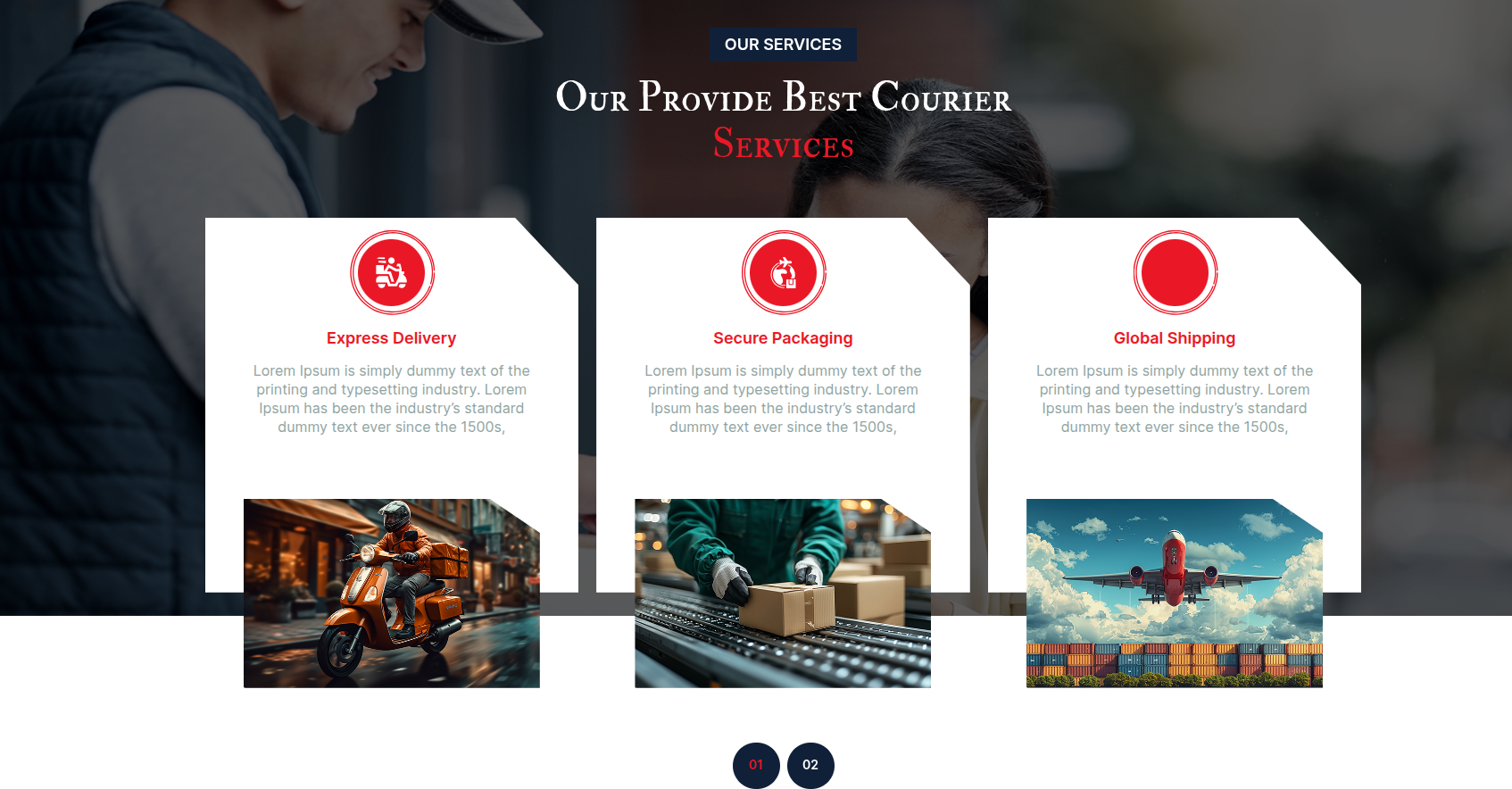
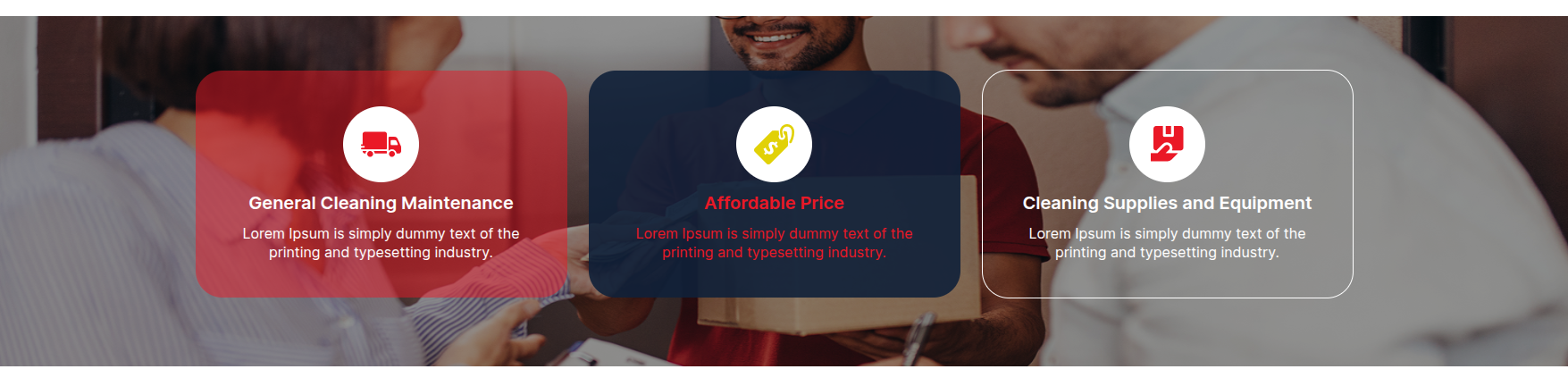
This is final image of Our Services Section
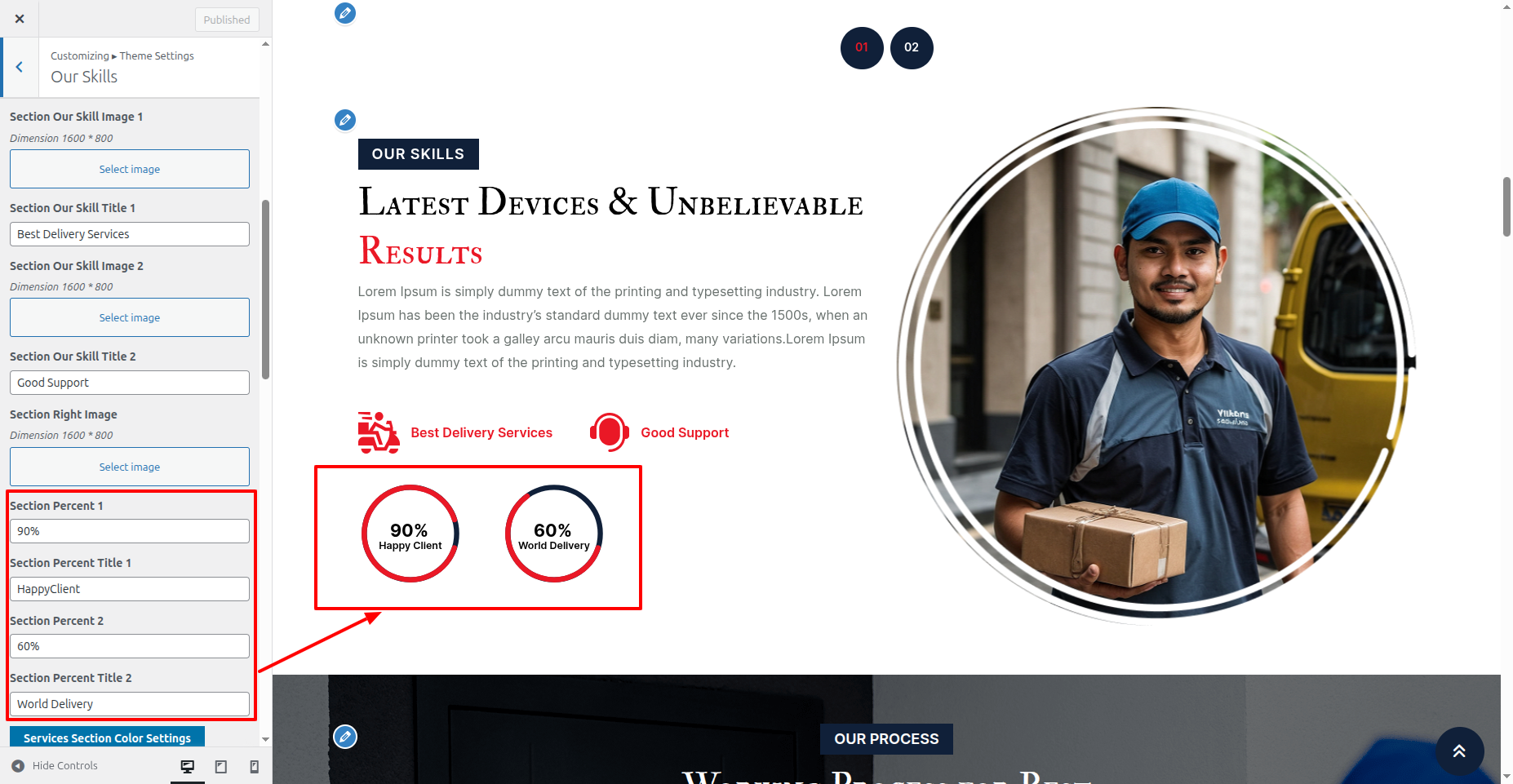
6.6 Our Skills Section
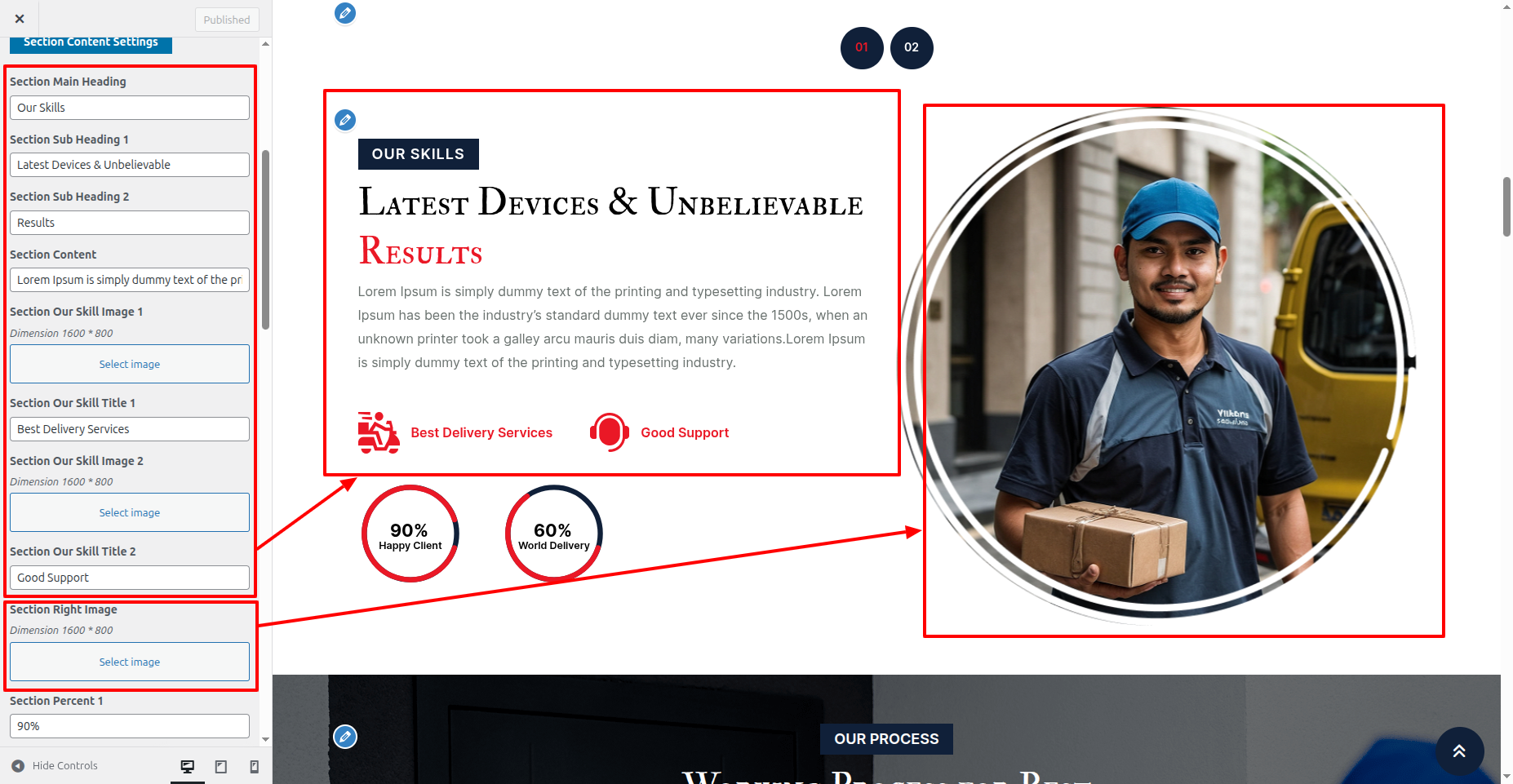
To proceed with the Our Skills Section.
Go to Appearance >> Customize >> Theme Settings >> Our Skills Section
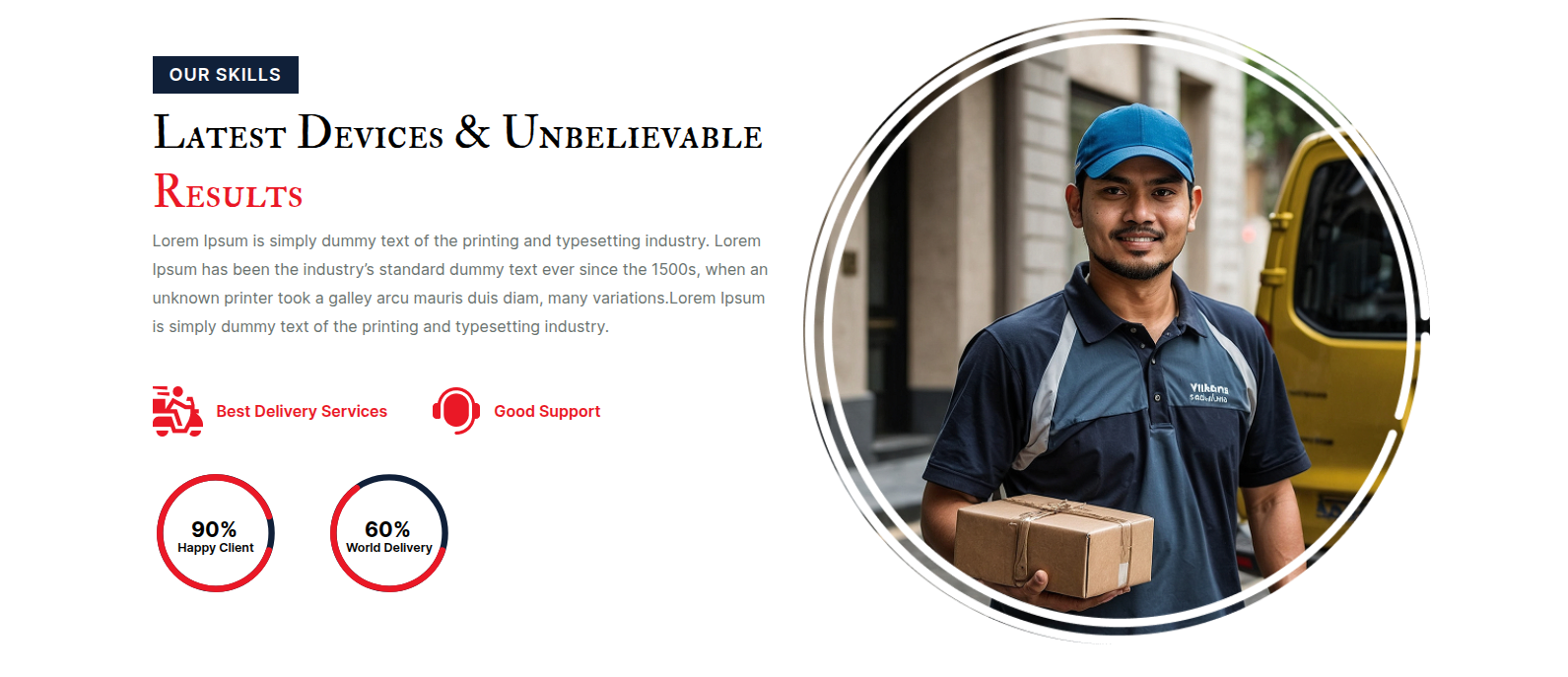
This is final image of Our Skills Section
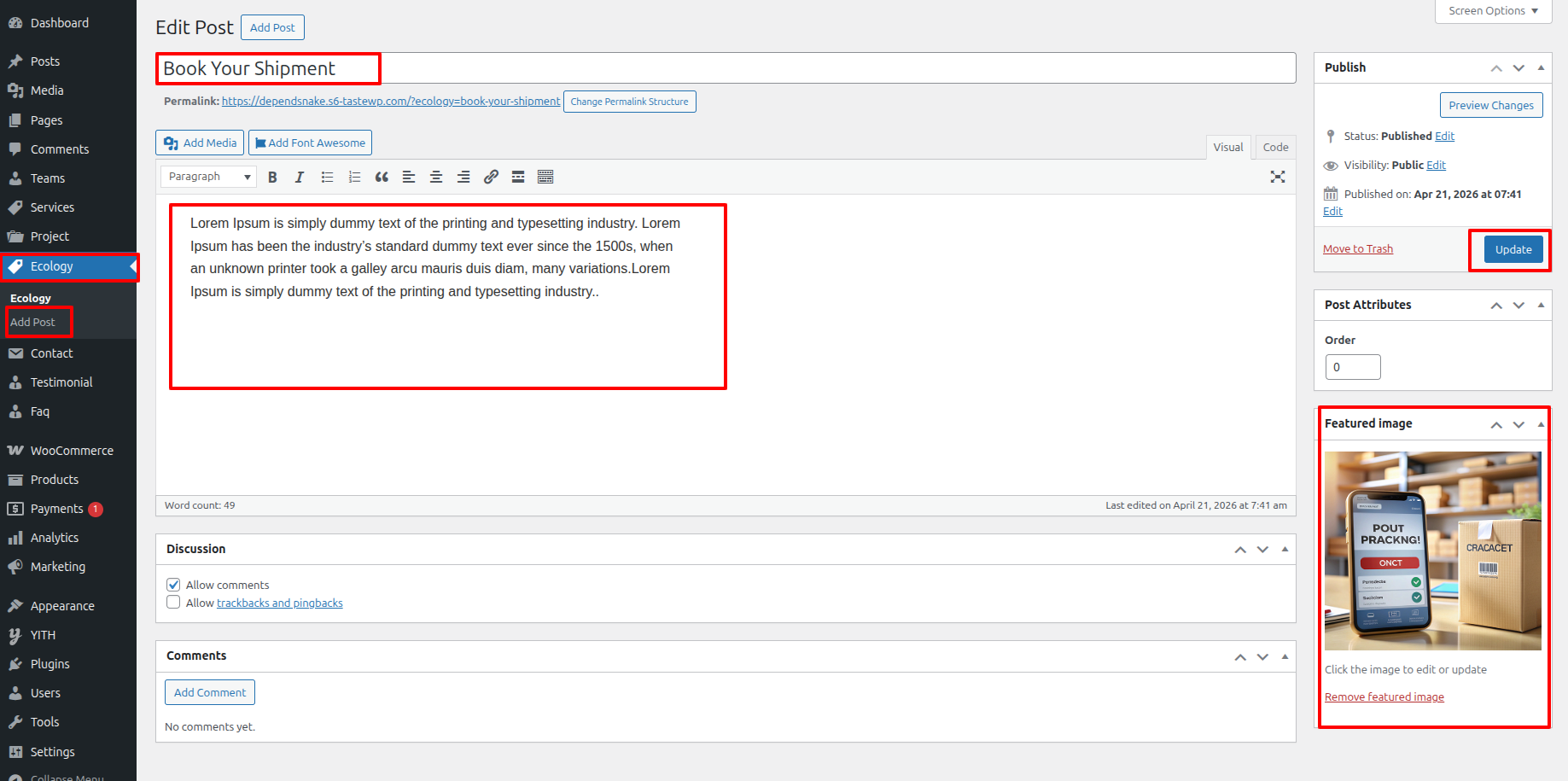
6.5 Our Process Section
To proceed with the Our Process Section
Go to Dashboard >>Services >> Edit
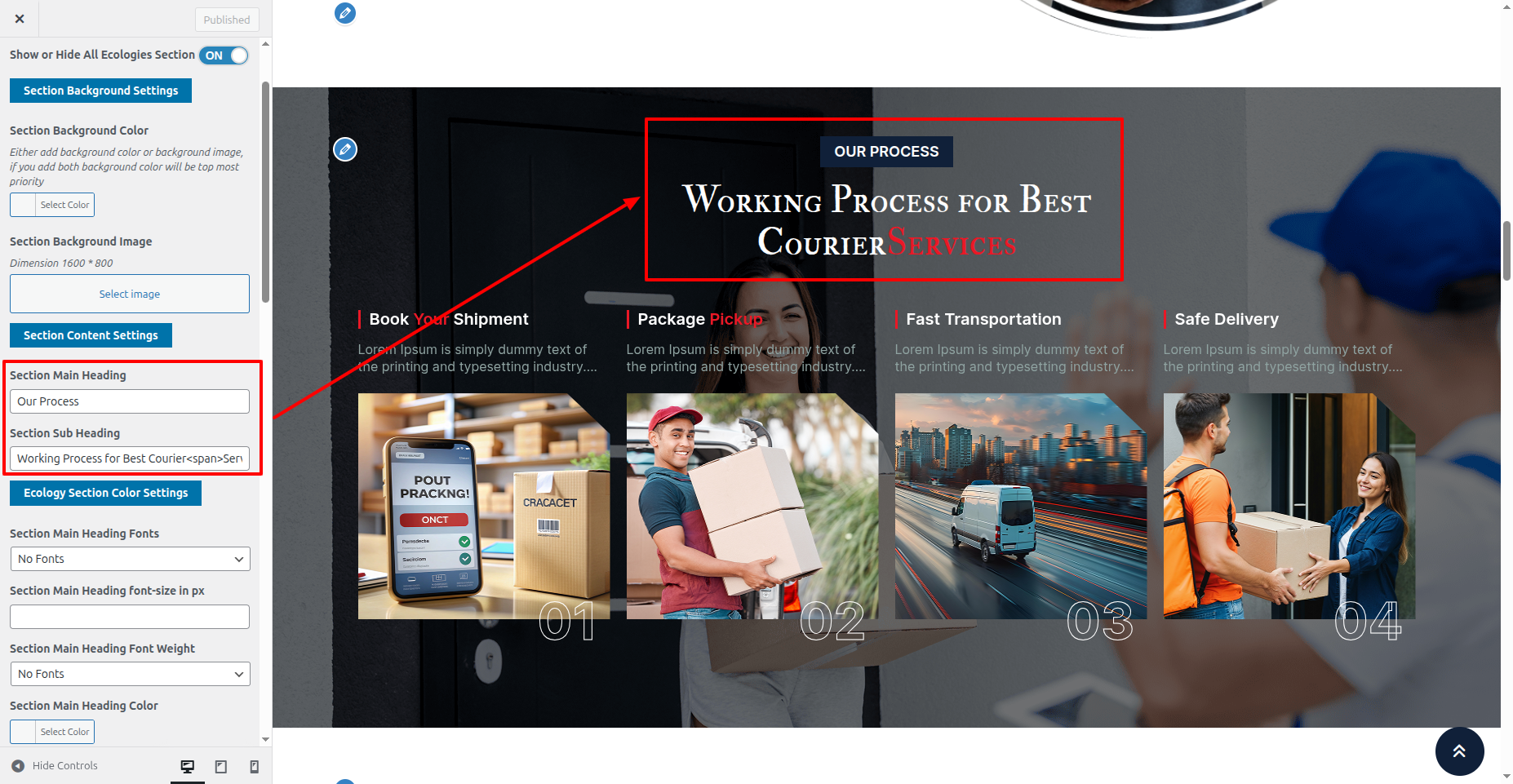
To proceed with the Our Process Section.
Go to Appearance >> Customize >> Theme Setting >> Our Process Section
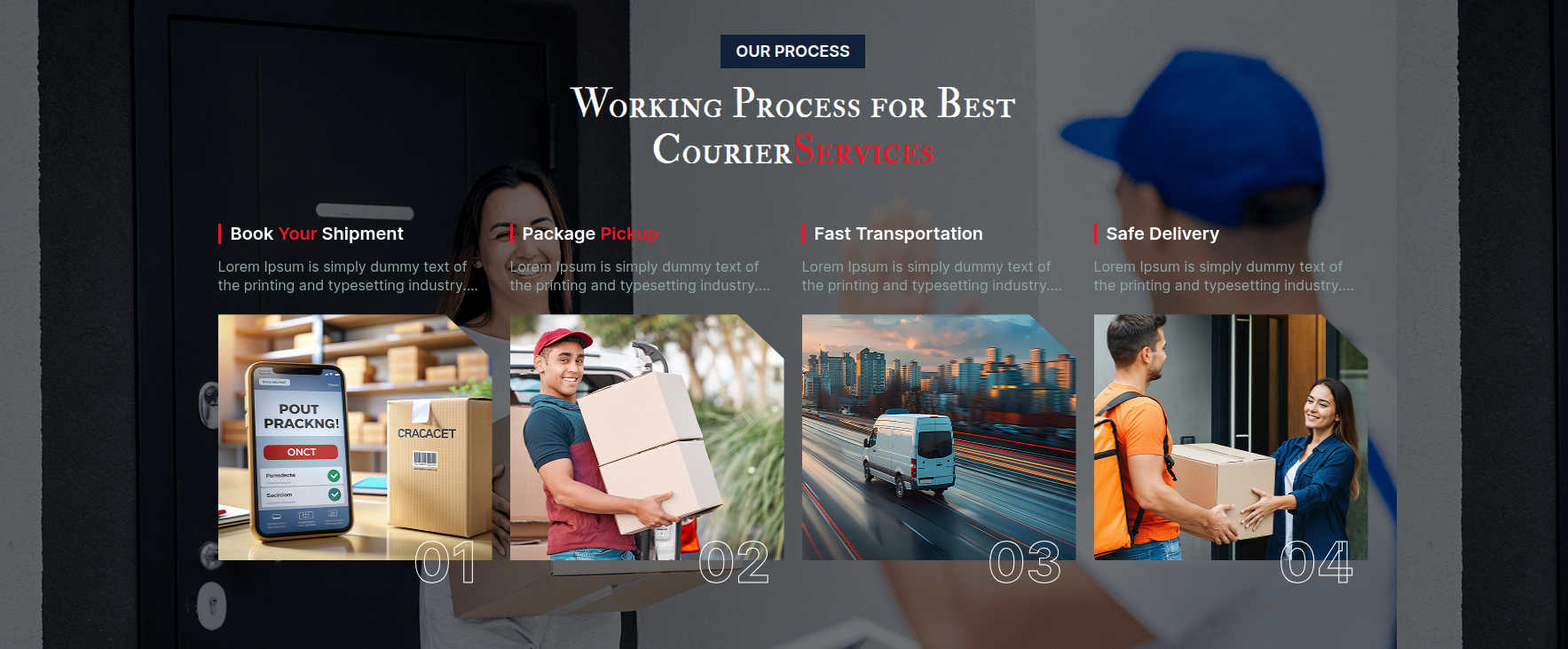
This is final image of Our Process Section
6.8 Choose Us Section
To proceed with the Choose Us Section.
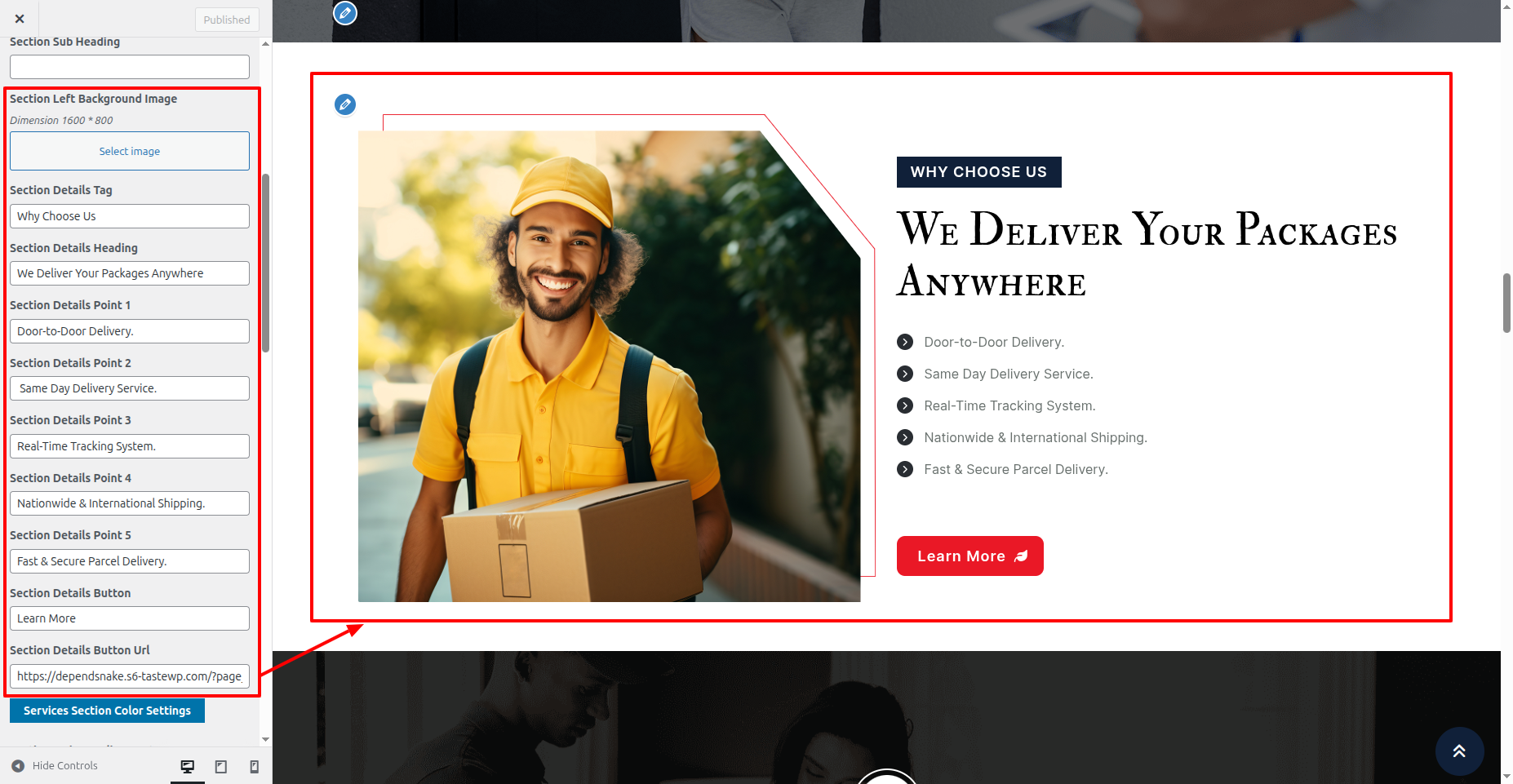
Go to Appearance >> Customize >> Theme Settings >>Choose Us Section
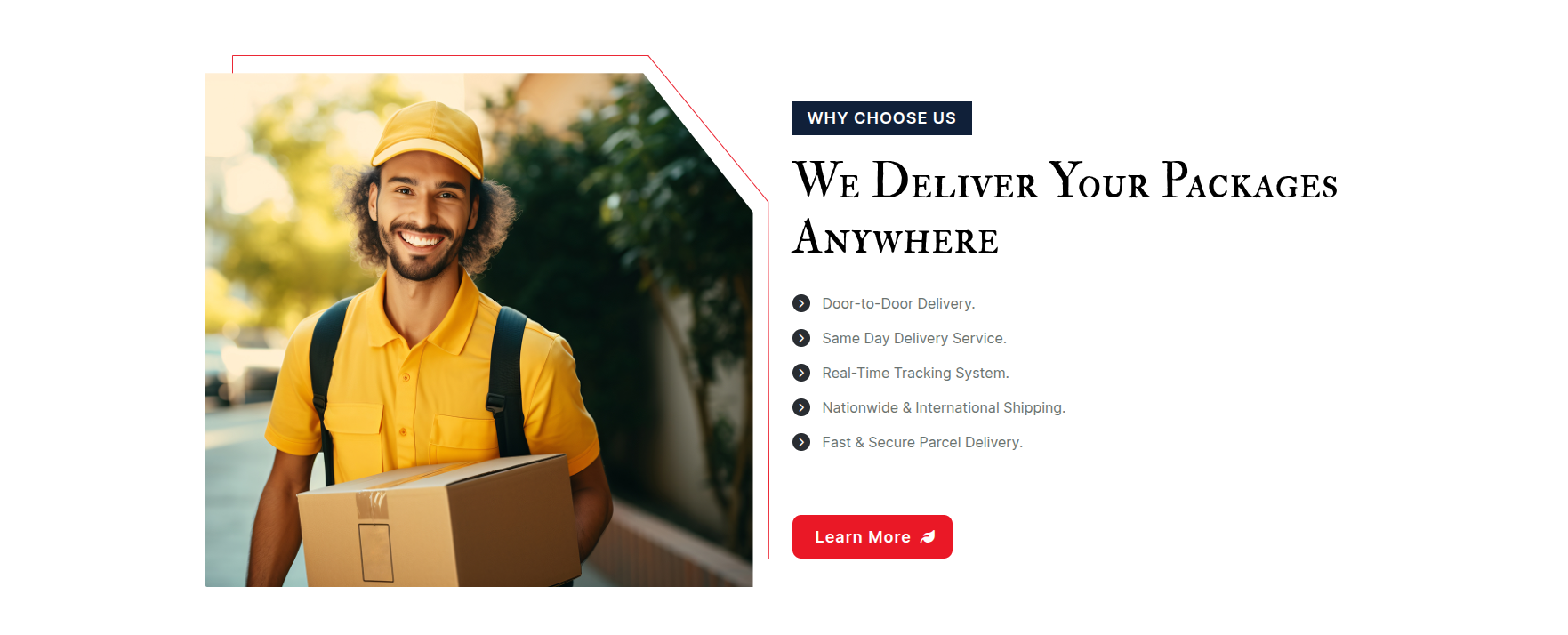
This is final image of Choose Us Section
6.8 Counter Section
To proceed with the Counter Section.
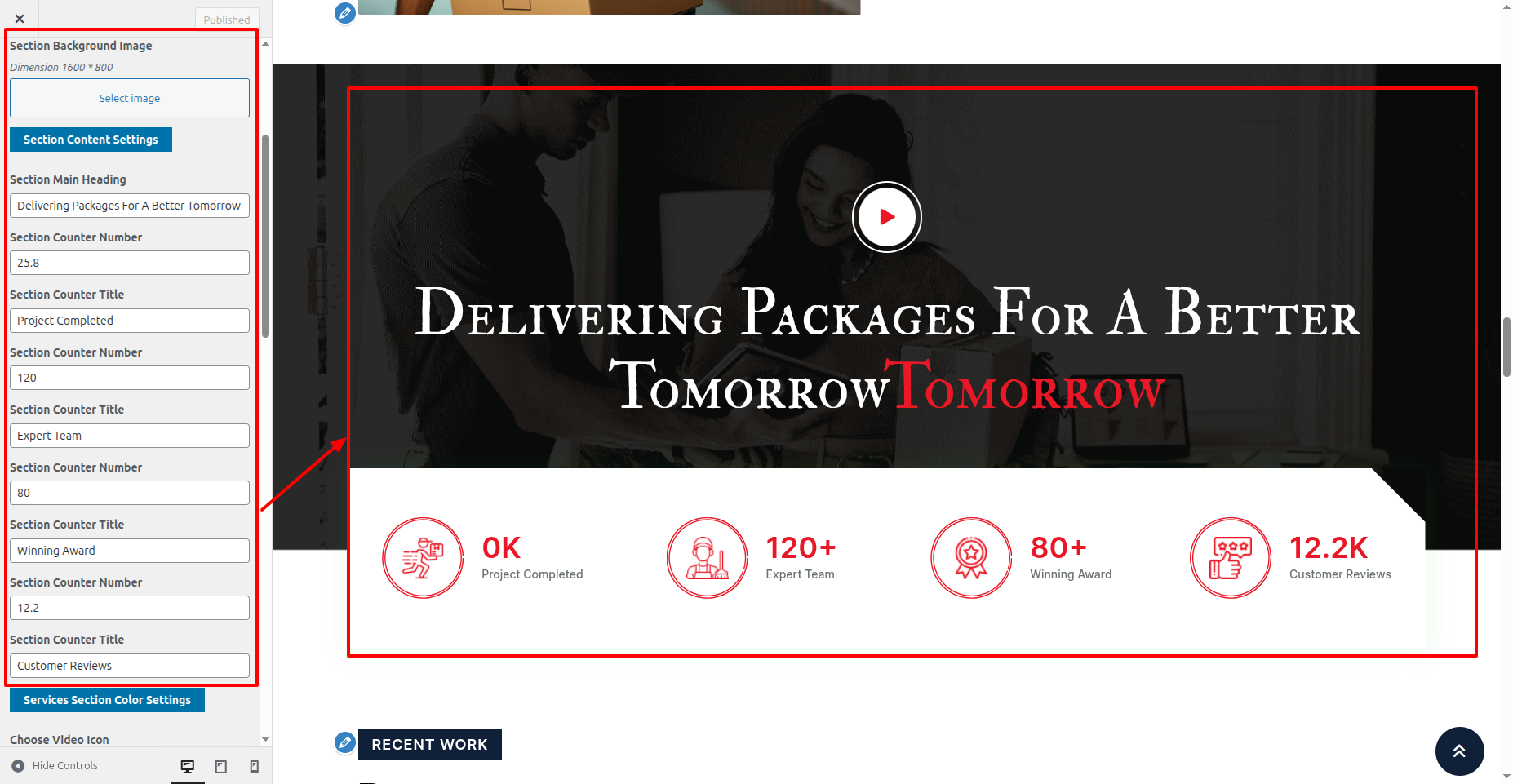
Go to Appearance >> Customize >> Theme Settings >>Counter Section
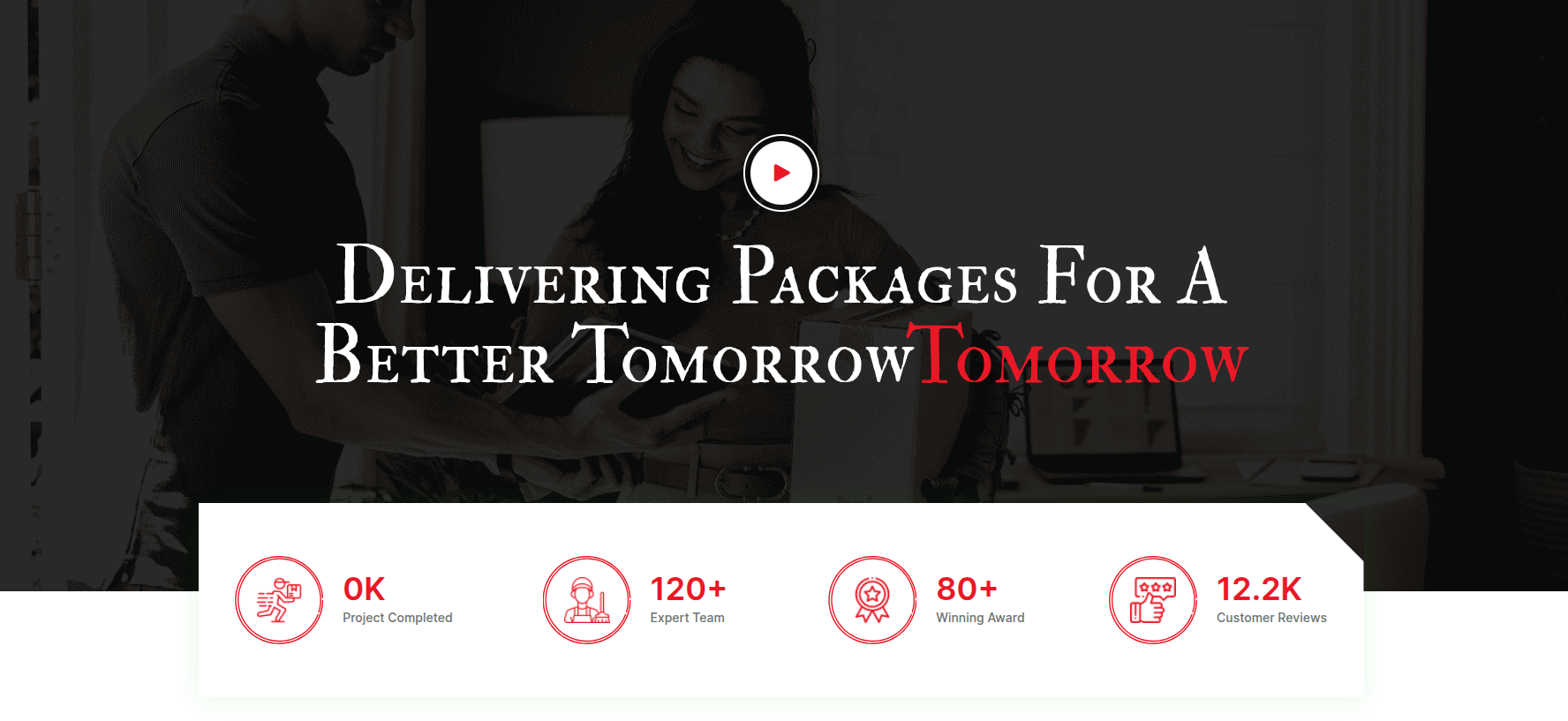
This is final image of Counter Section
6.5 Projects Section
To proceed with the Projects Section
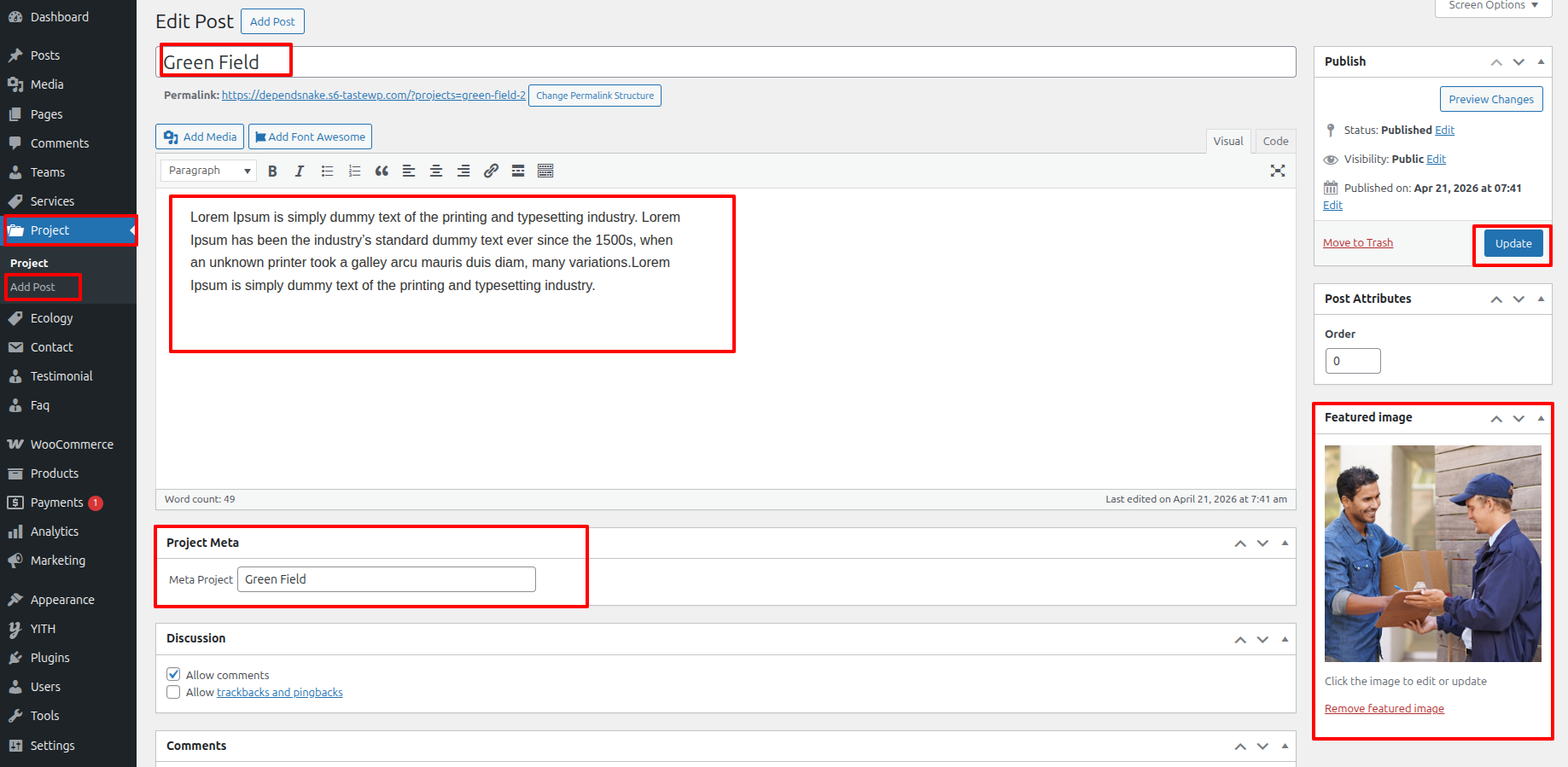
Go to Dashboard >>Services >> Edit
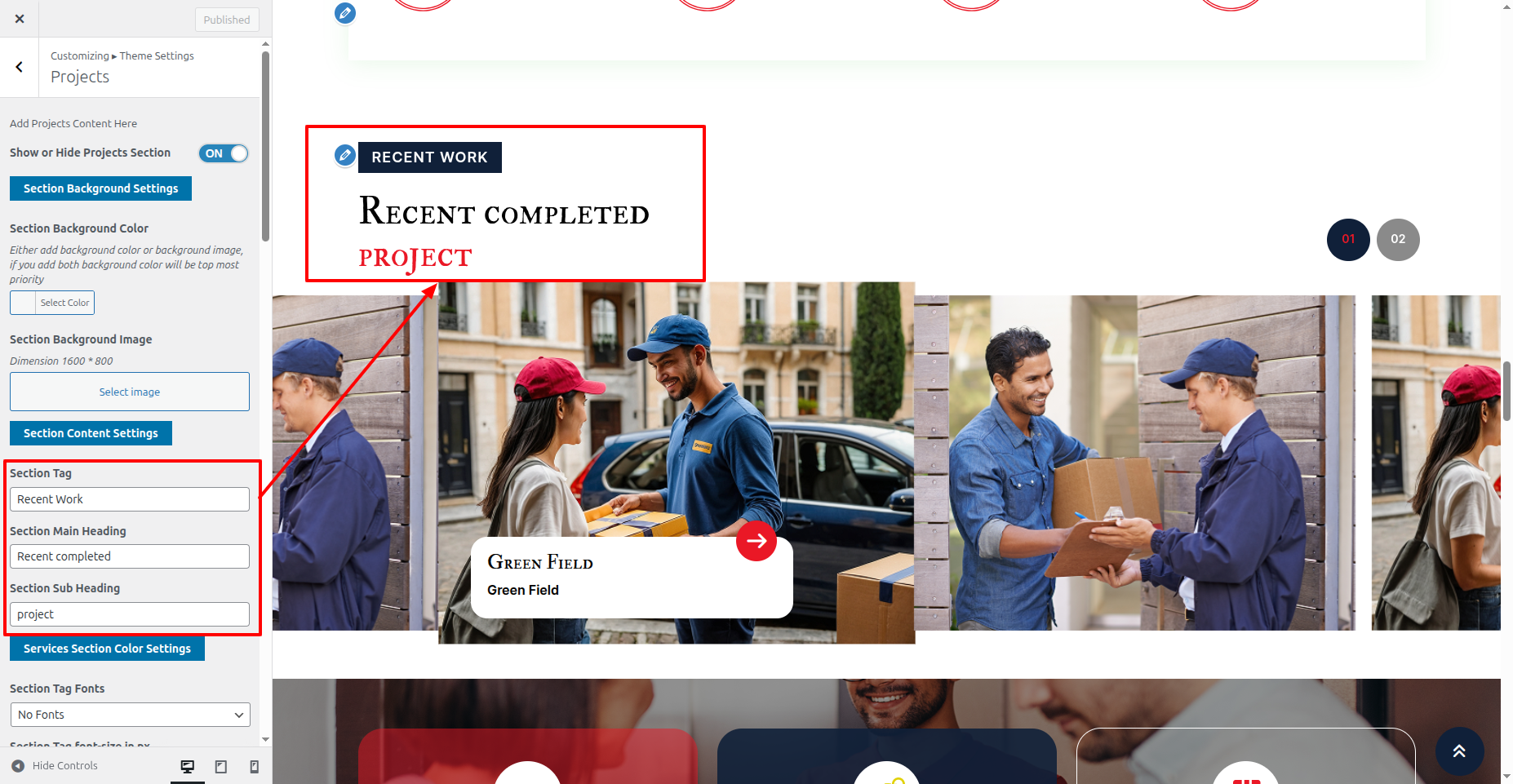
To proceed with the Projects Section.
Go to Appearance >> Customize >> Theme Setting >> Projects Section
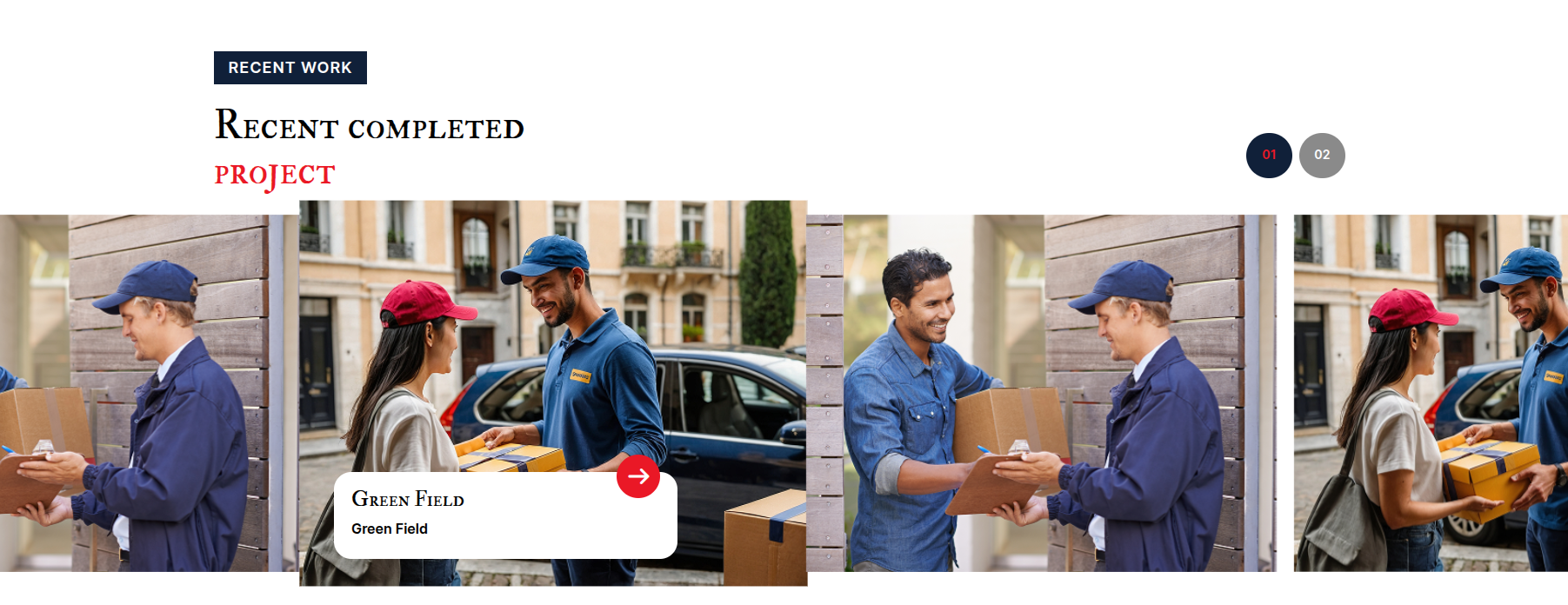
This is final image of Projects Section
6.10 About Ecology Section
Go to Appearance >> Customize >> Theme Settings >>About Ecology Section
You can configure the Final About Ecology Section in this way.
6.10 Gallery Section
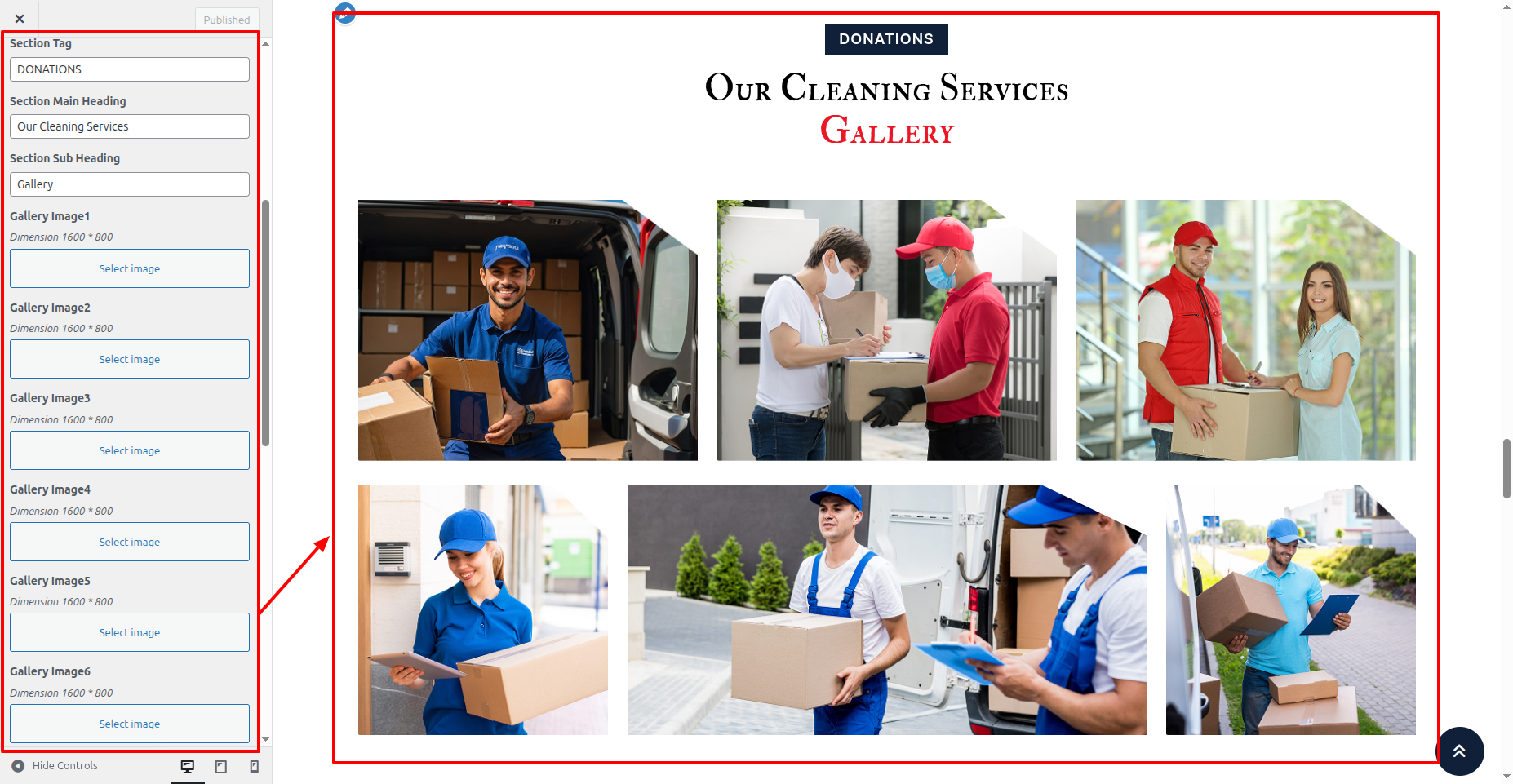
Go to Appearance >> Customize >> Theme Settings >>Gallery Section
You can configure the Final Gallery Section in this way.
6.5 Testimonial Section
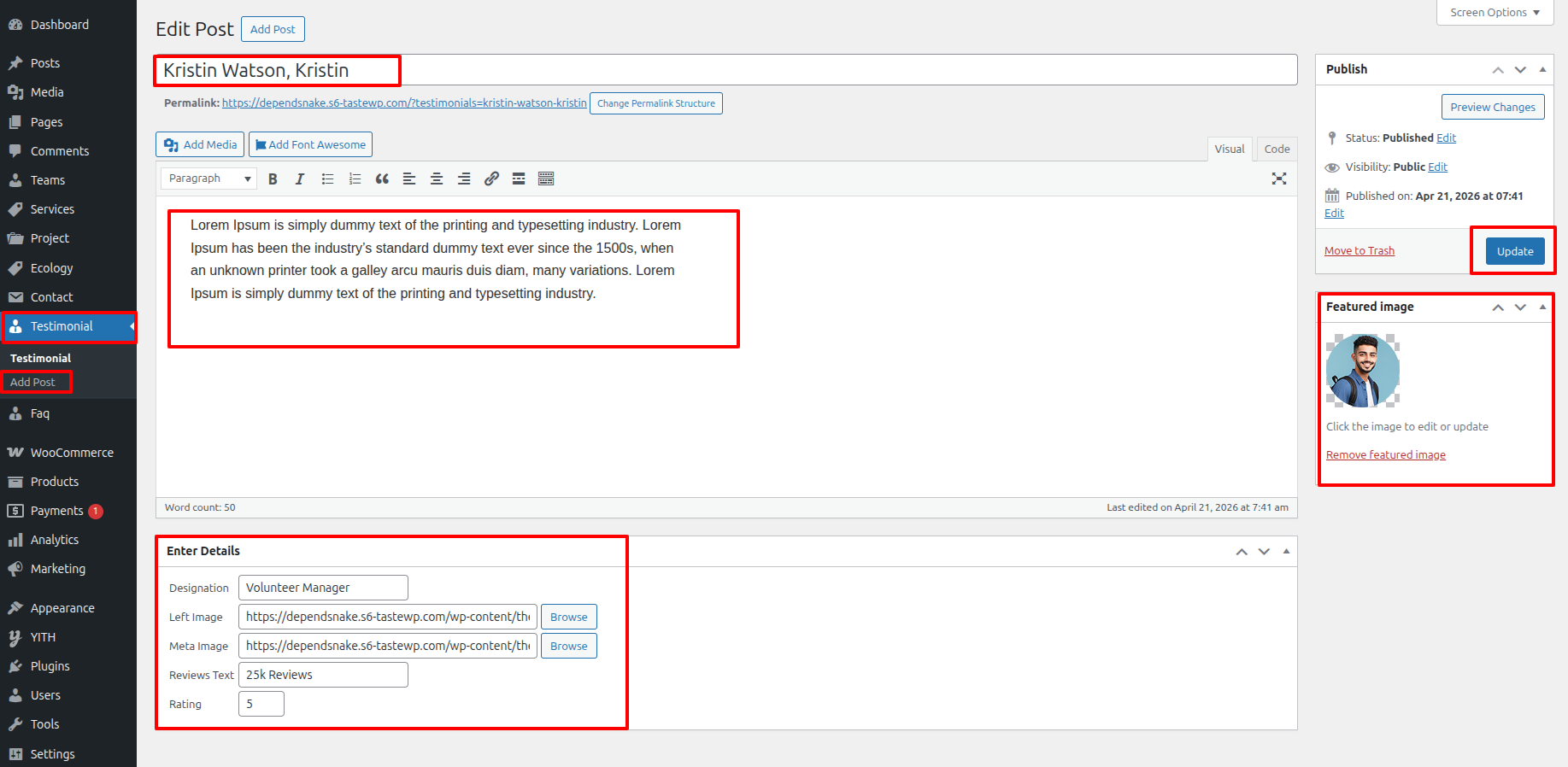
To proceed with the Testimonial Section
Go to Dashboard >> Testimonial >> Edit
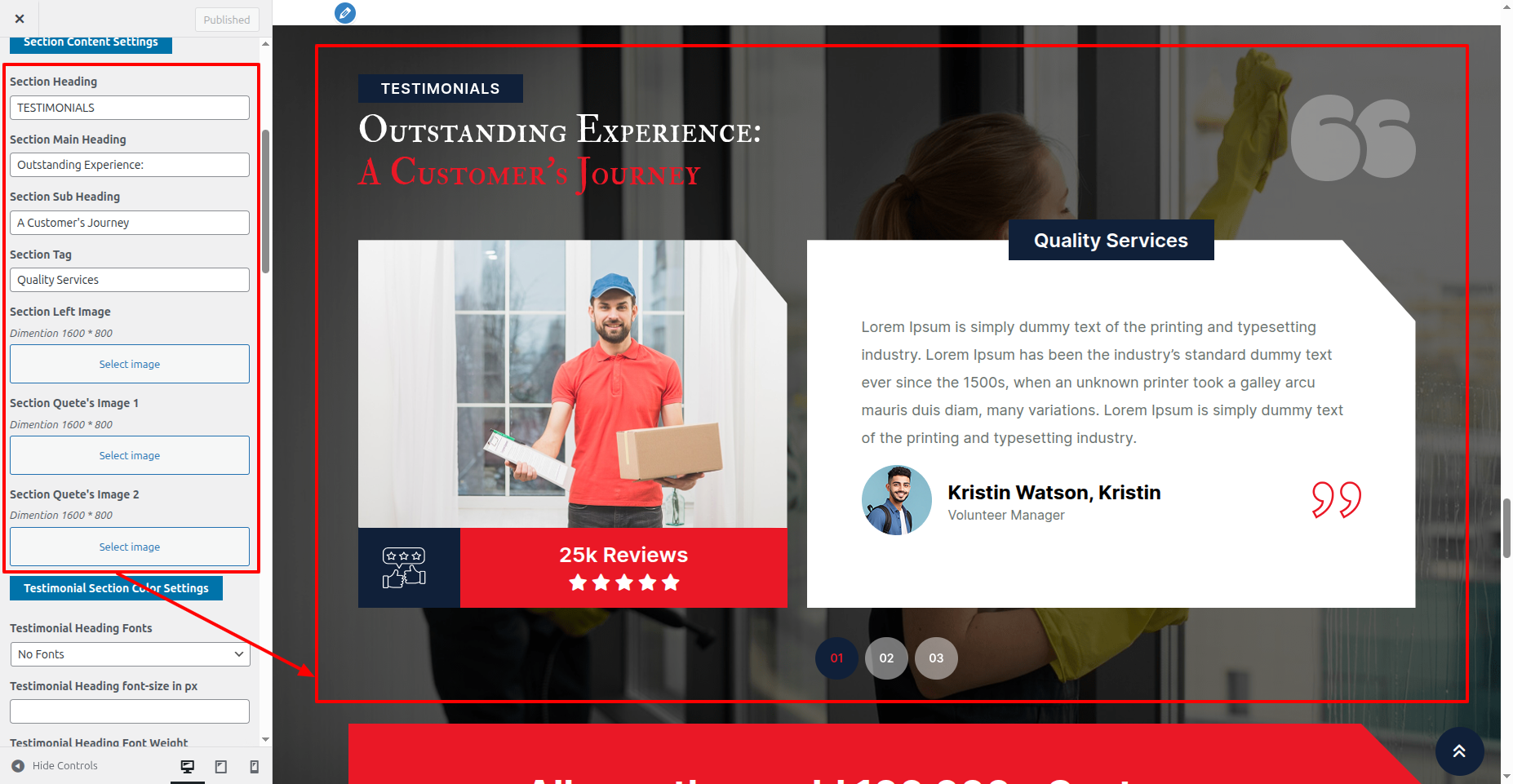
To proceed with the Testimonial Section.
Go to Appearance >> Customize >> Theme Setting >> Testimonial Section
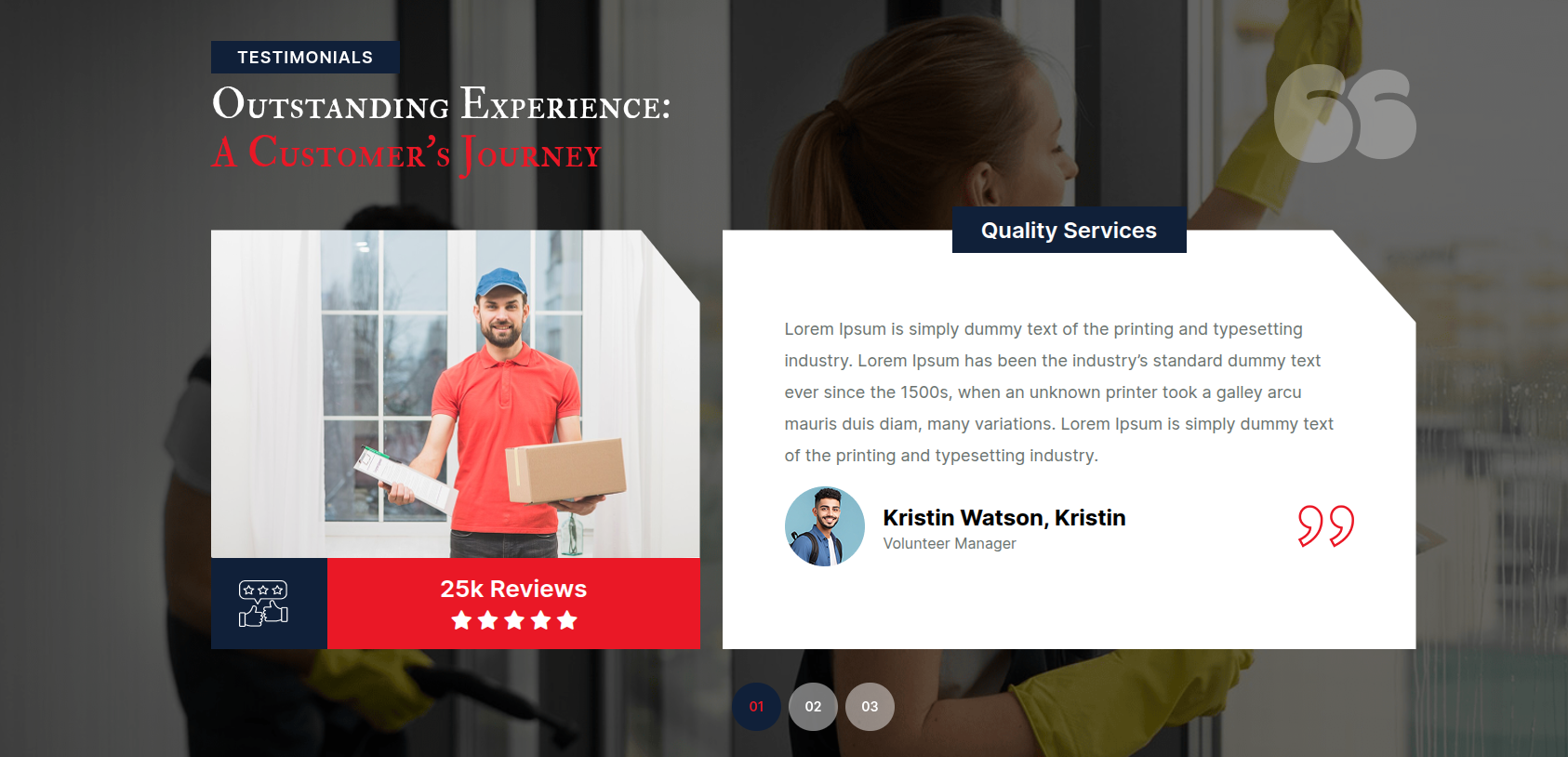
This is final image of Testimonial Section
6.5 Our Team Section
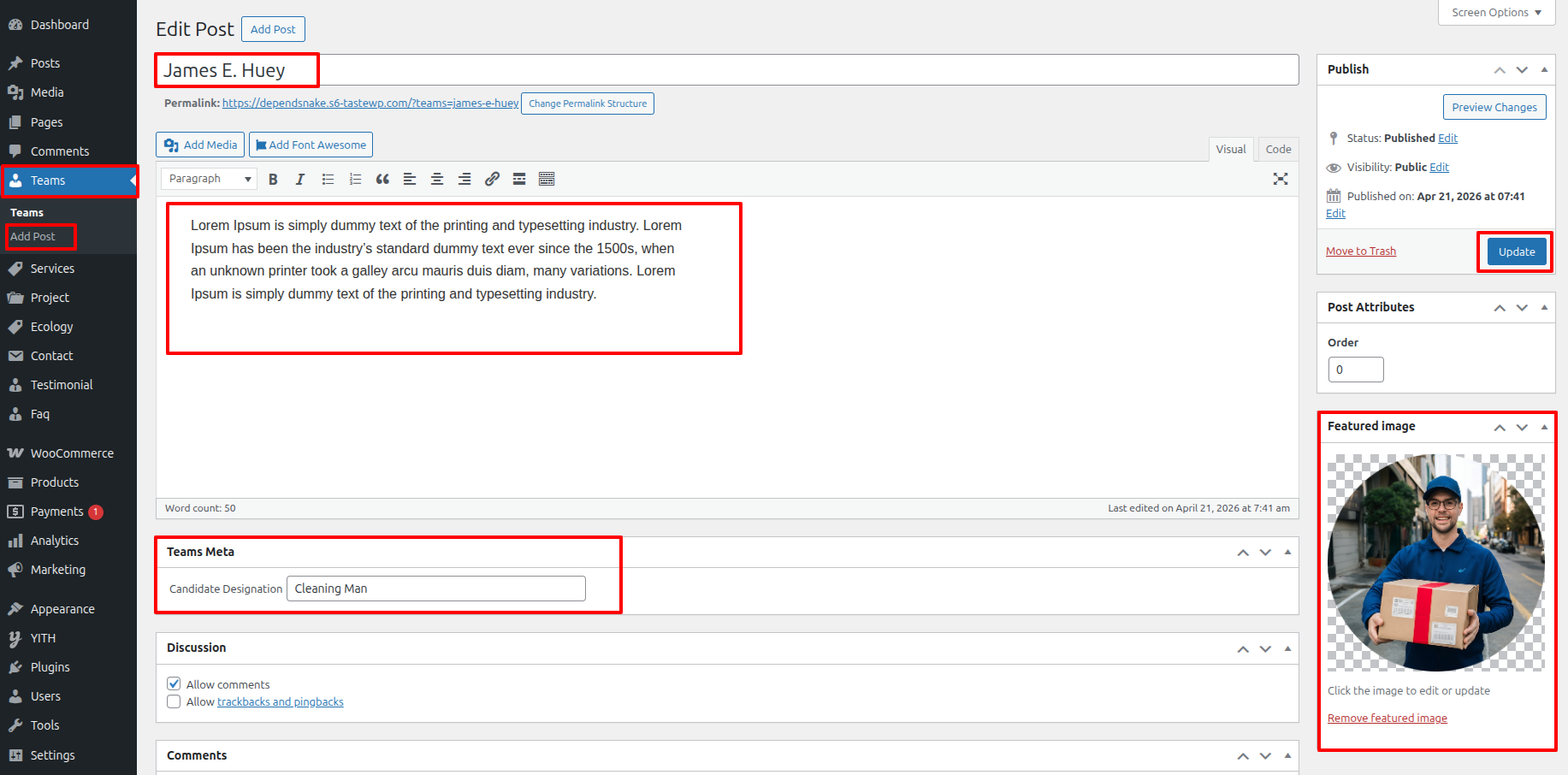
To proceed with the Our Team Section
Go to Dashboard >> Team >> Edit
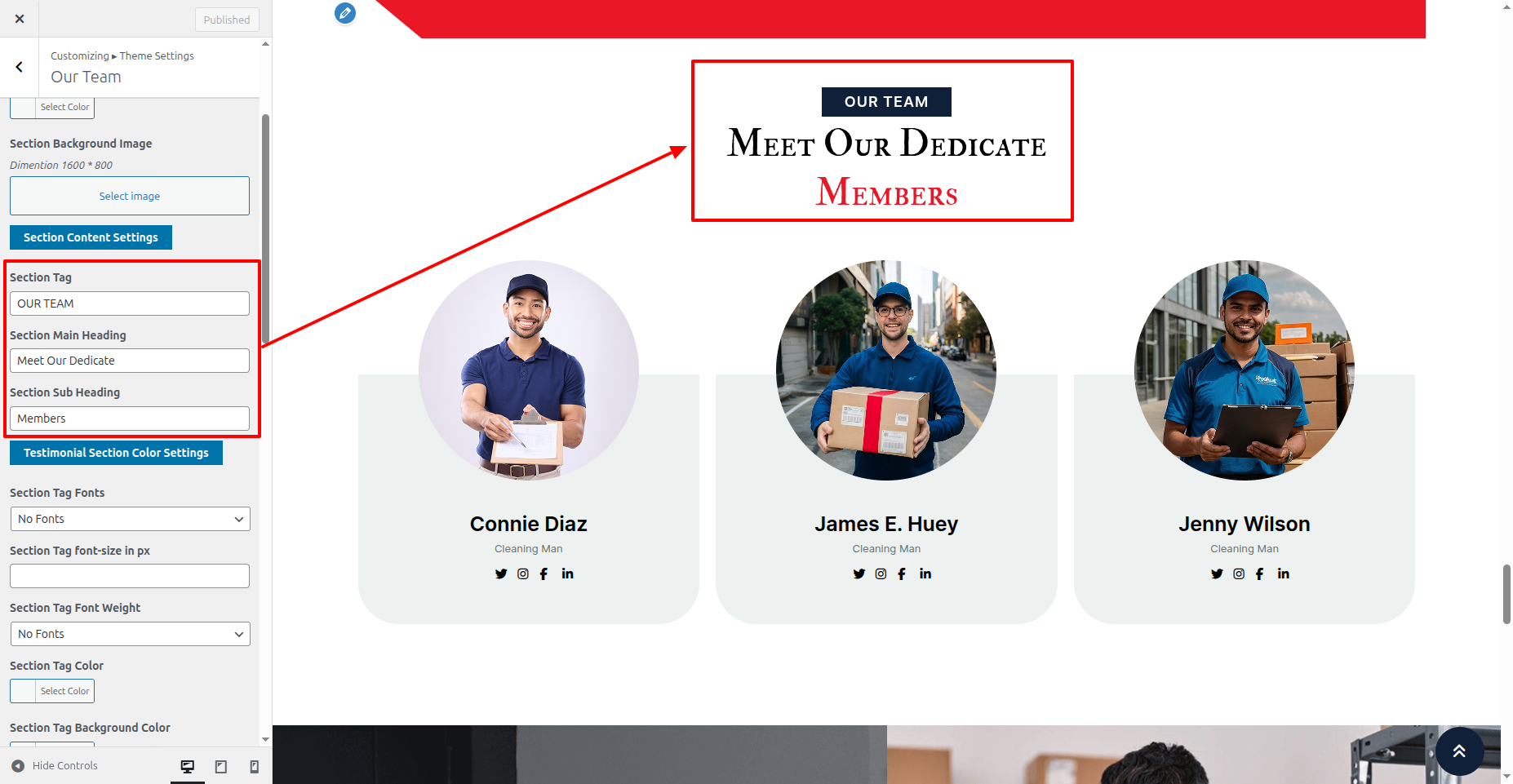
To proceed with the Our Team Section.
Go to Appearance >> Customize >> Theme Setting >> Our Team Section
This is final image of Our Team Section
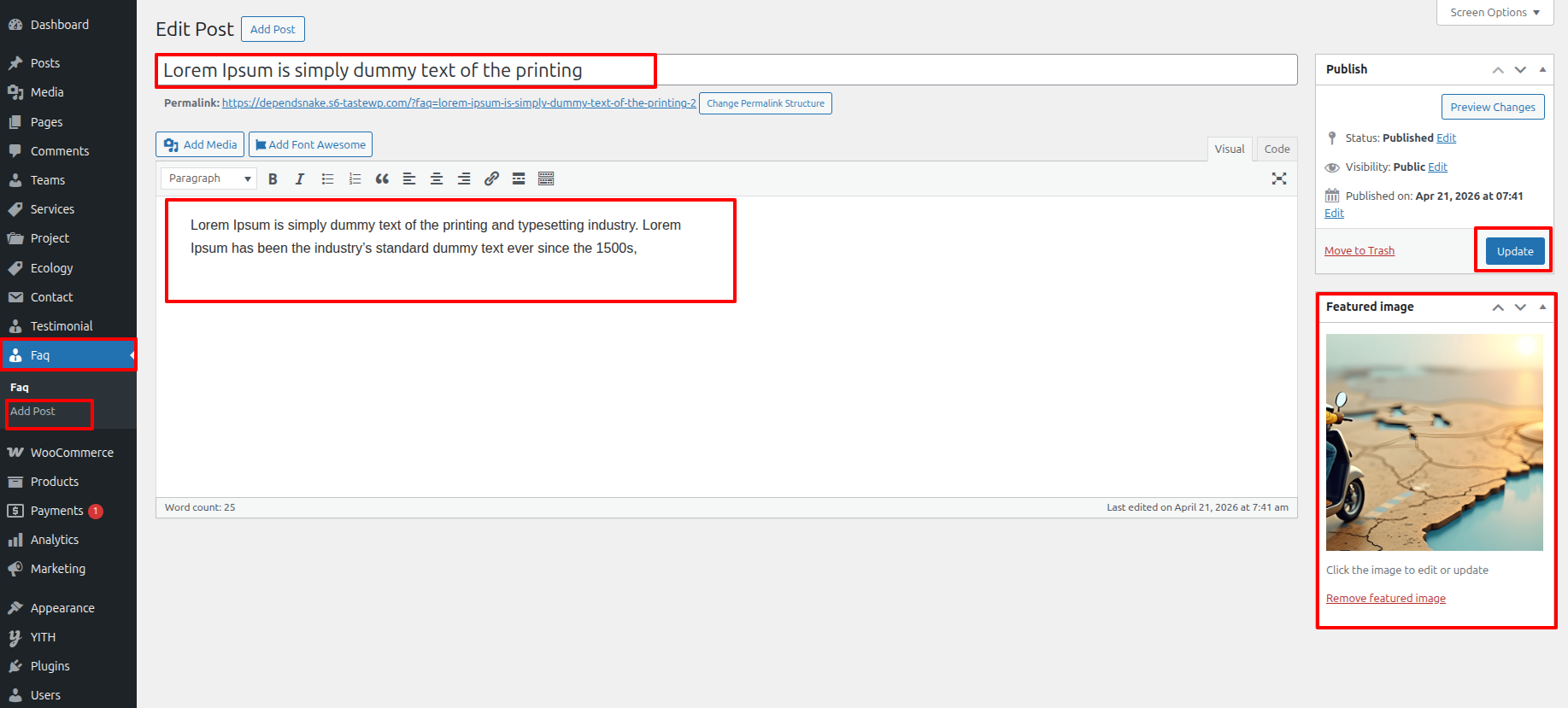
6.5 Faqs Section
To proceed with the Faqs Section
Go to Dashboard >> Team >> Edit
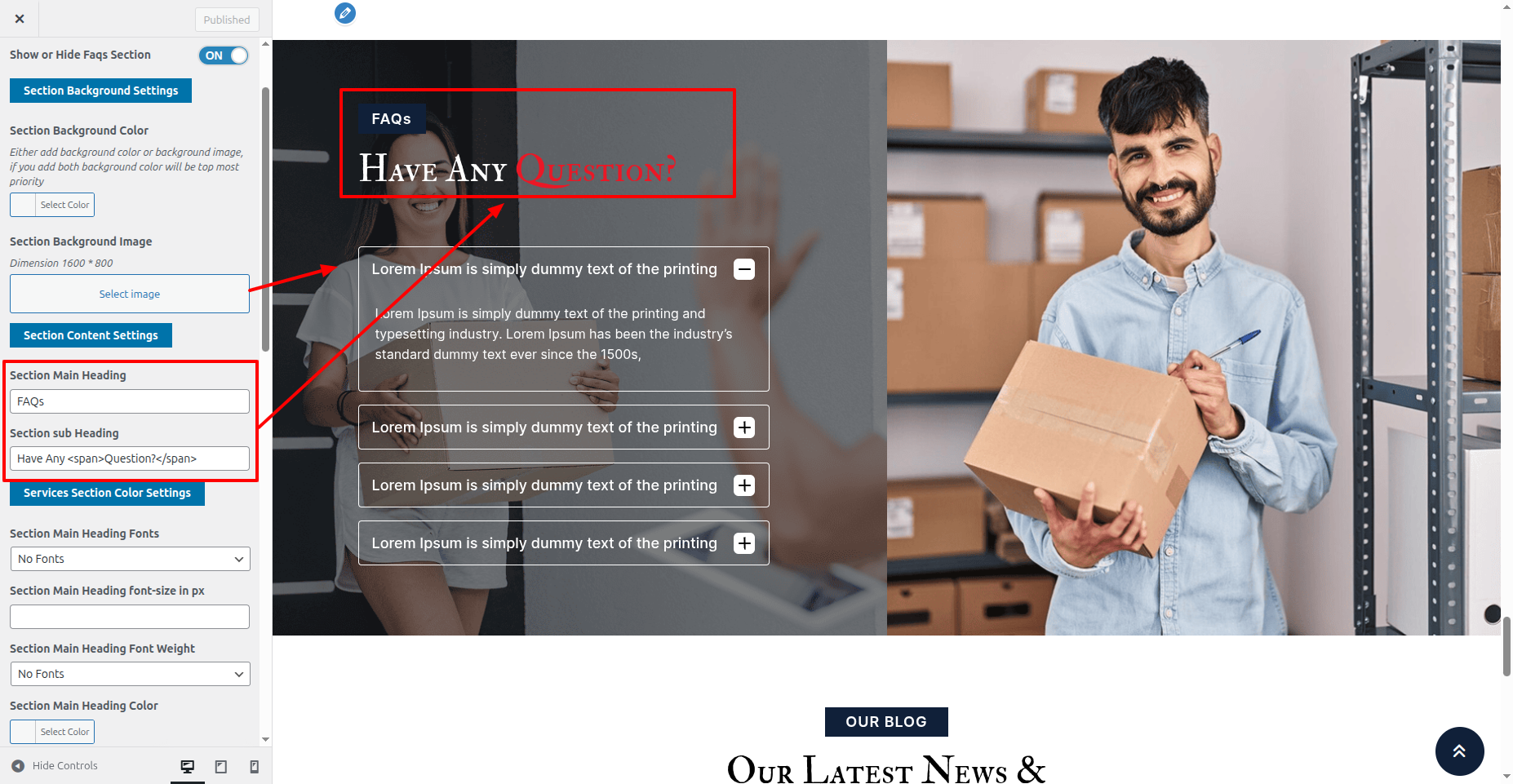
To proceed with the Faqs Section.
Go to Appearance >> Customize >> Theme Setting >> Faqs Section
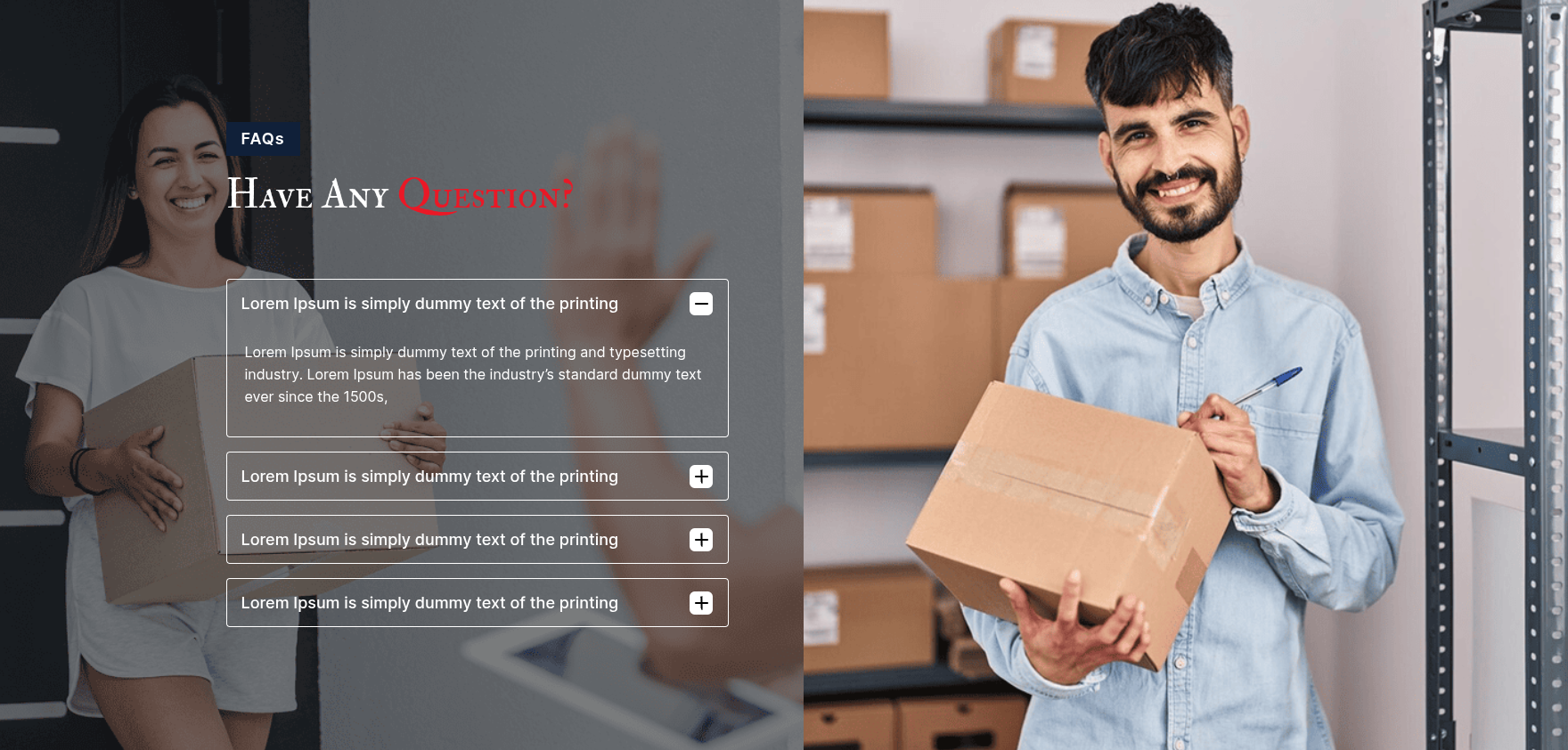
This is final image of Faqs Section
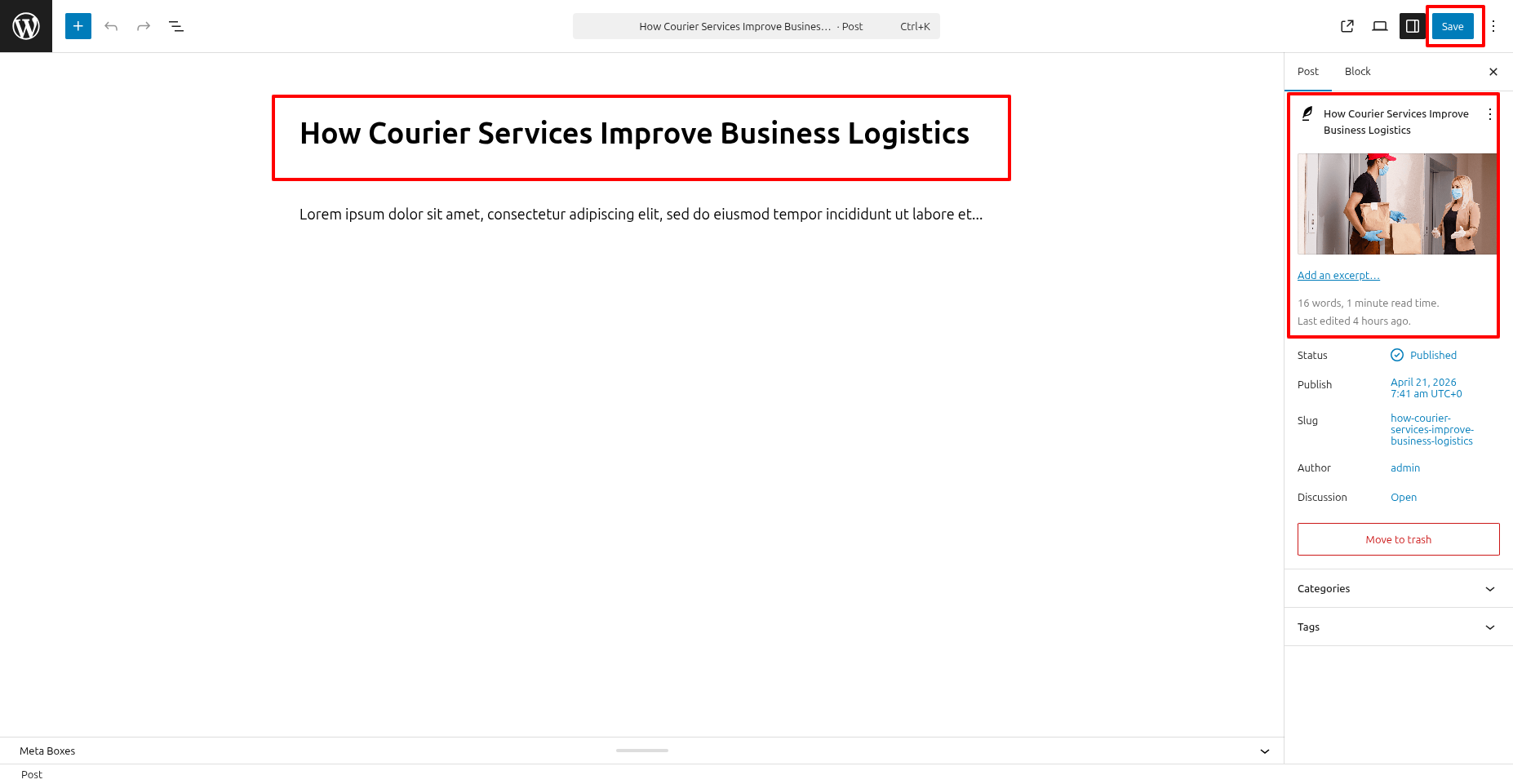
6.5 Latest Blogs Section
To proceed with the Latest Blogs Section
Go to Dashboard >> Team >> Edit
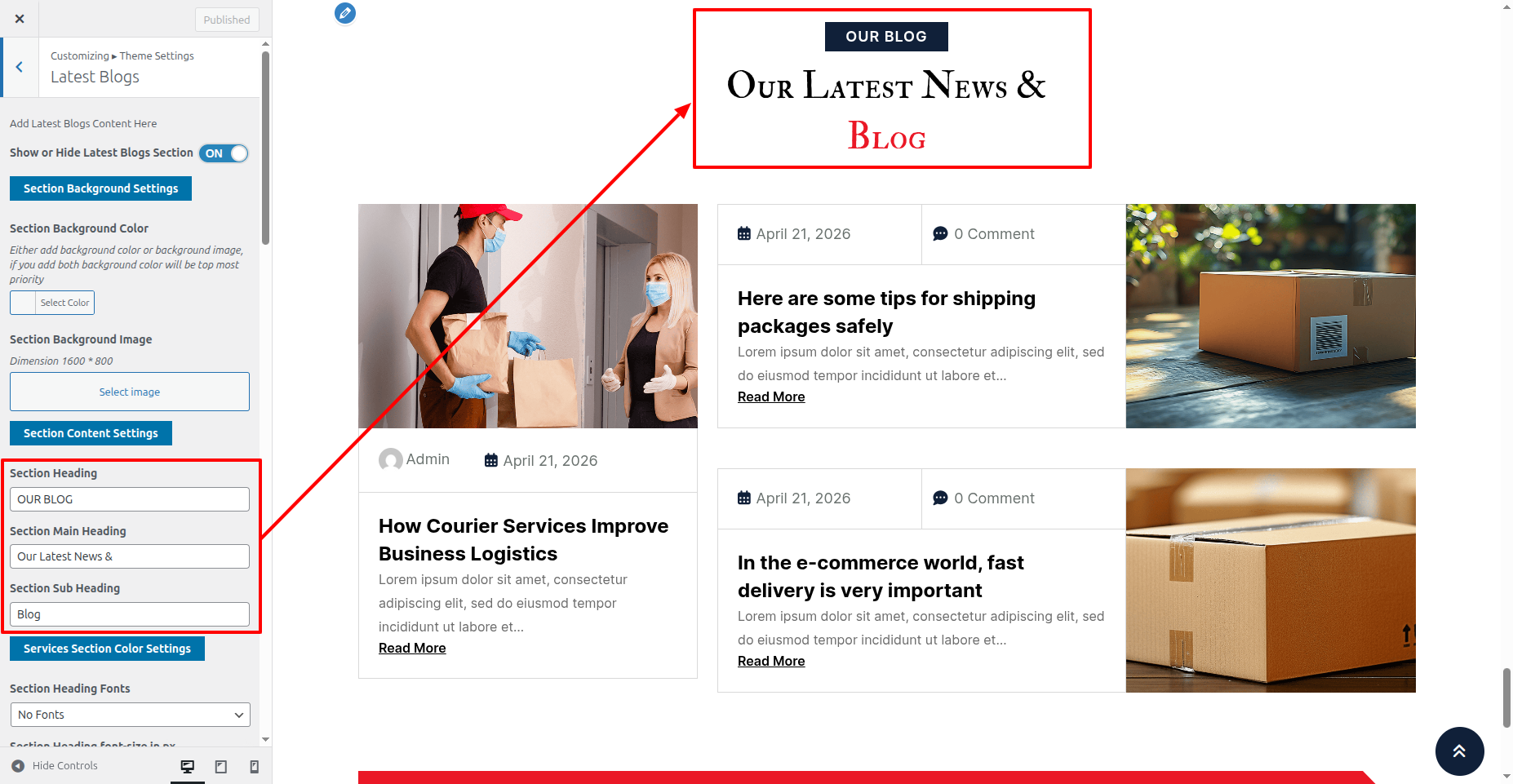
To proceed with the Latest Blogs Section.
Go to Appearance >> Customize >> Theme Setting >> Latest Blogs Section
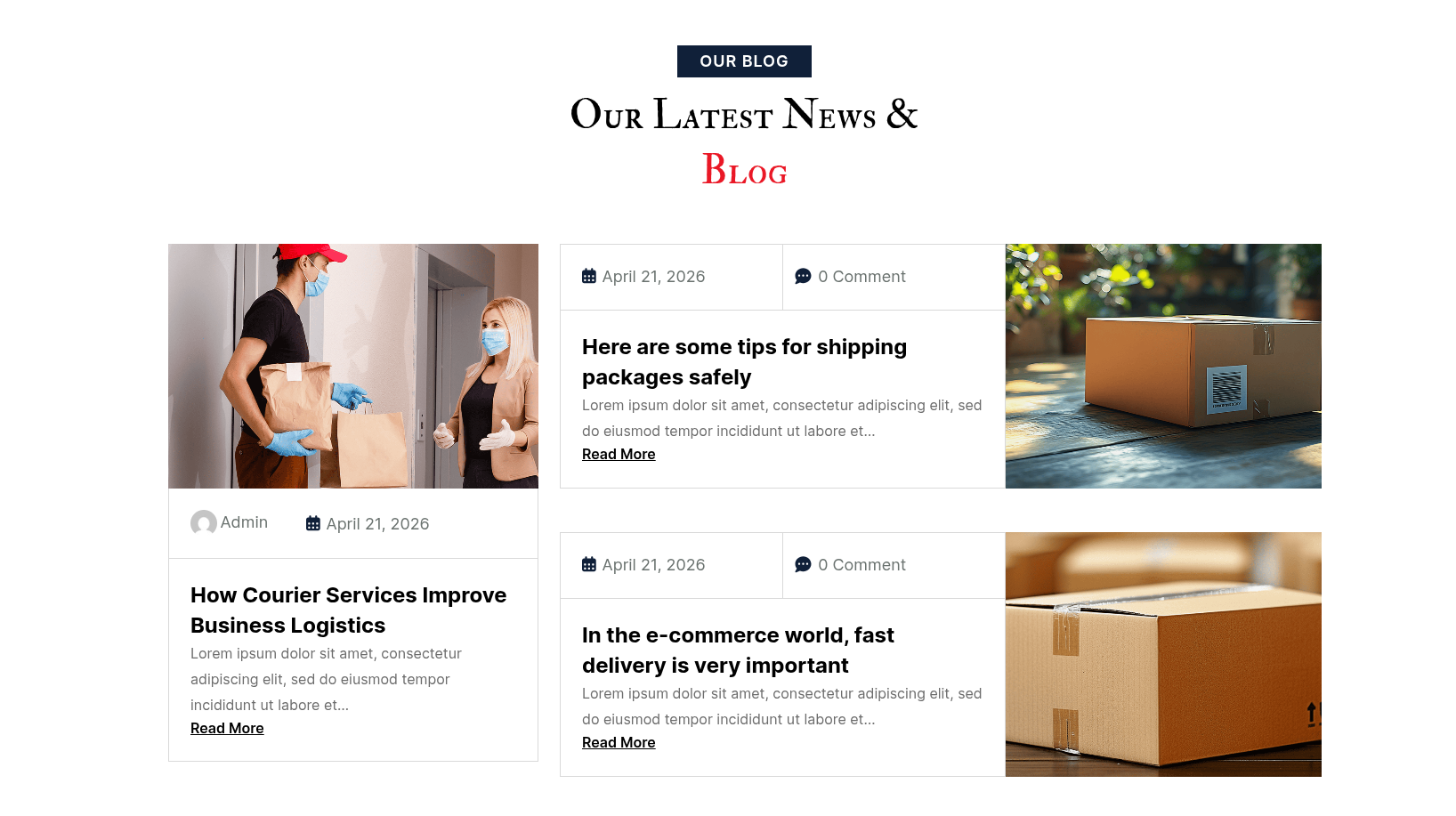
This is final image of Latest Blogs Section
6.5 Newsletter Section
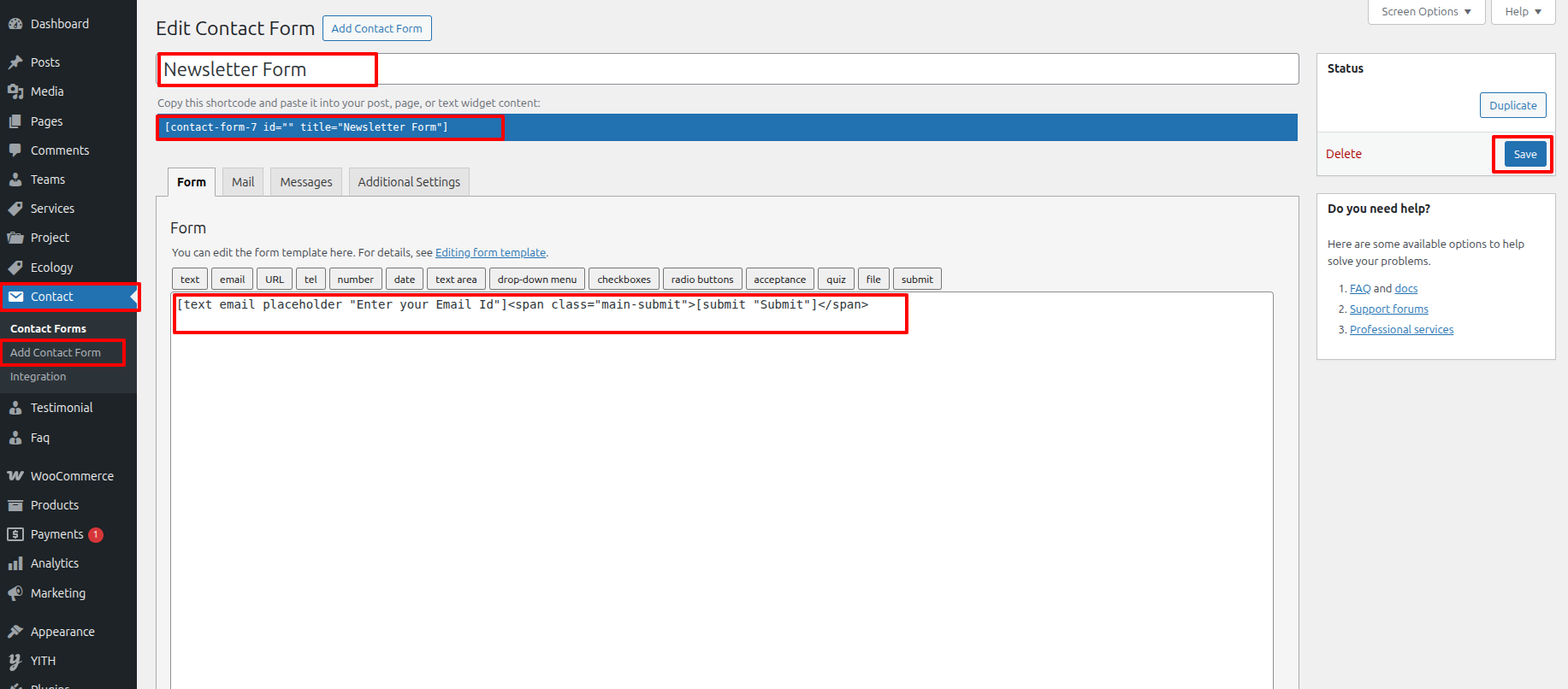
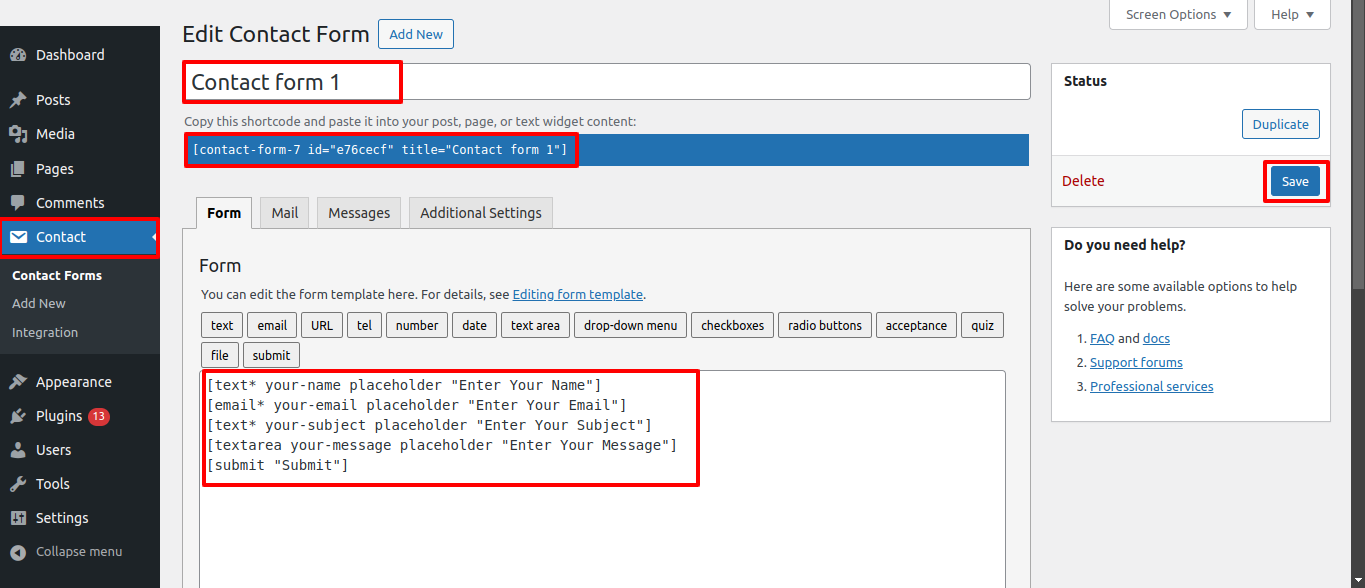
To proceed with the Newsletter Section
Go to Dashboard >> Team >> Edit
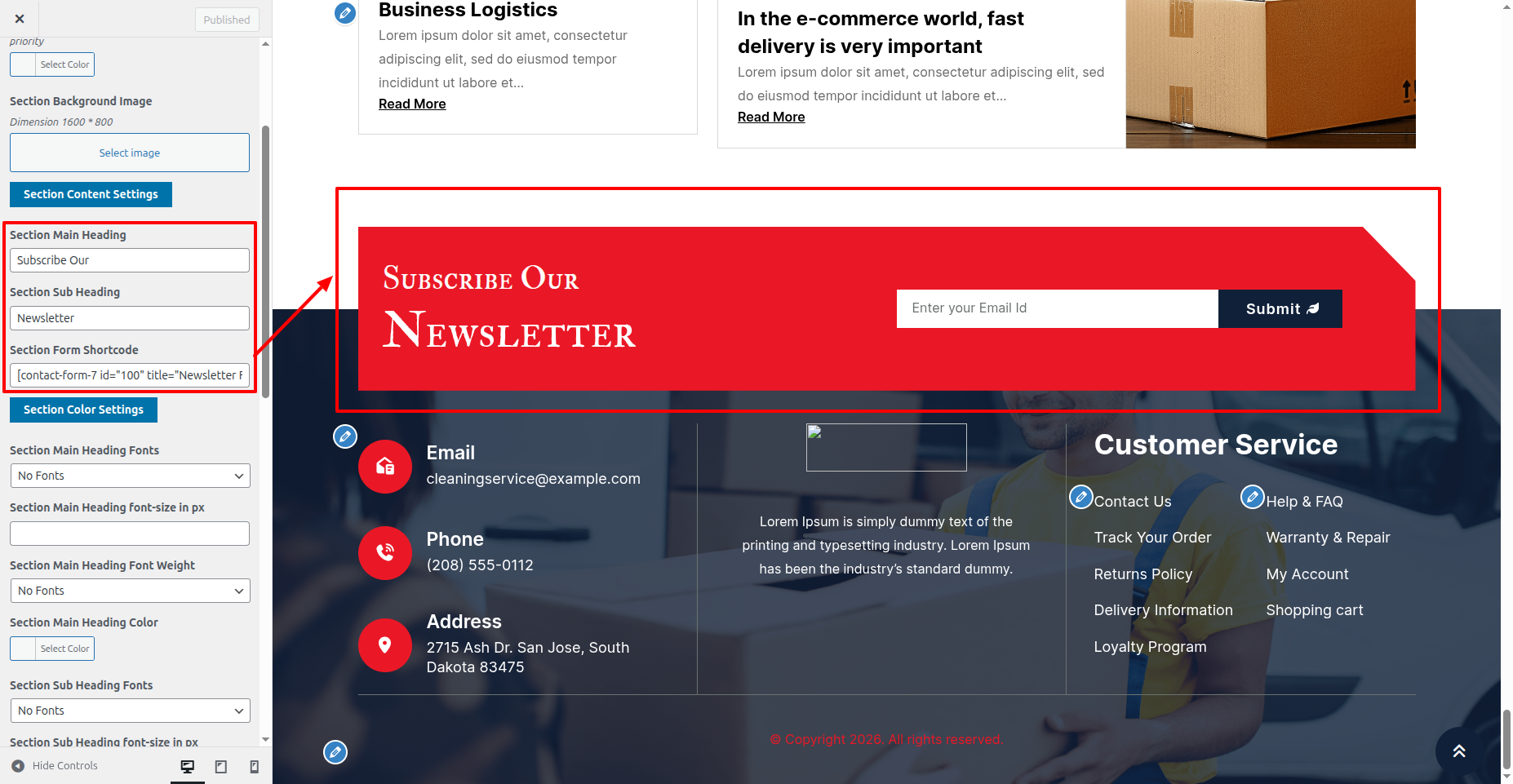
To proceed with the Newsletter Section.
Go to Appearance >> Customize >> Theme Setting >> Newsletter Section
This is final image of Newsletter Section
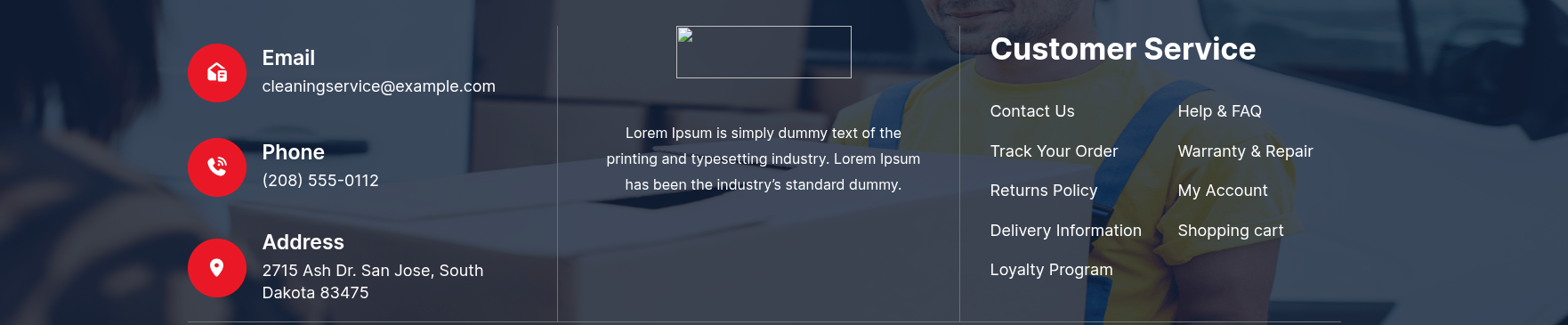
6.16 Setup Footer Menu Section
To Setup Footer Section
Go to Dashboard >> Appearance >> Widgets
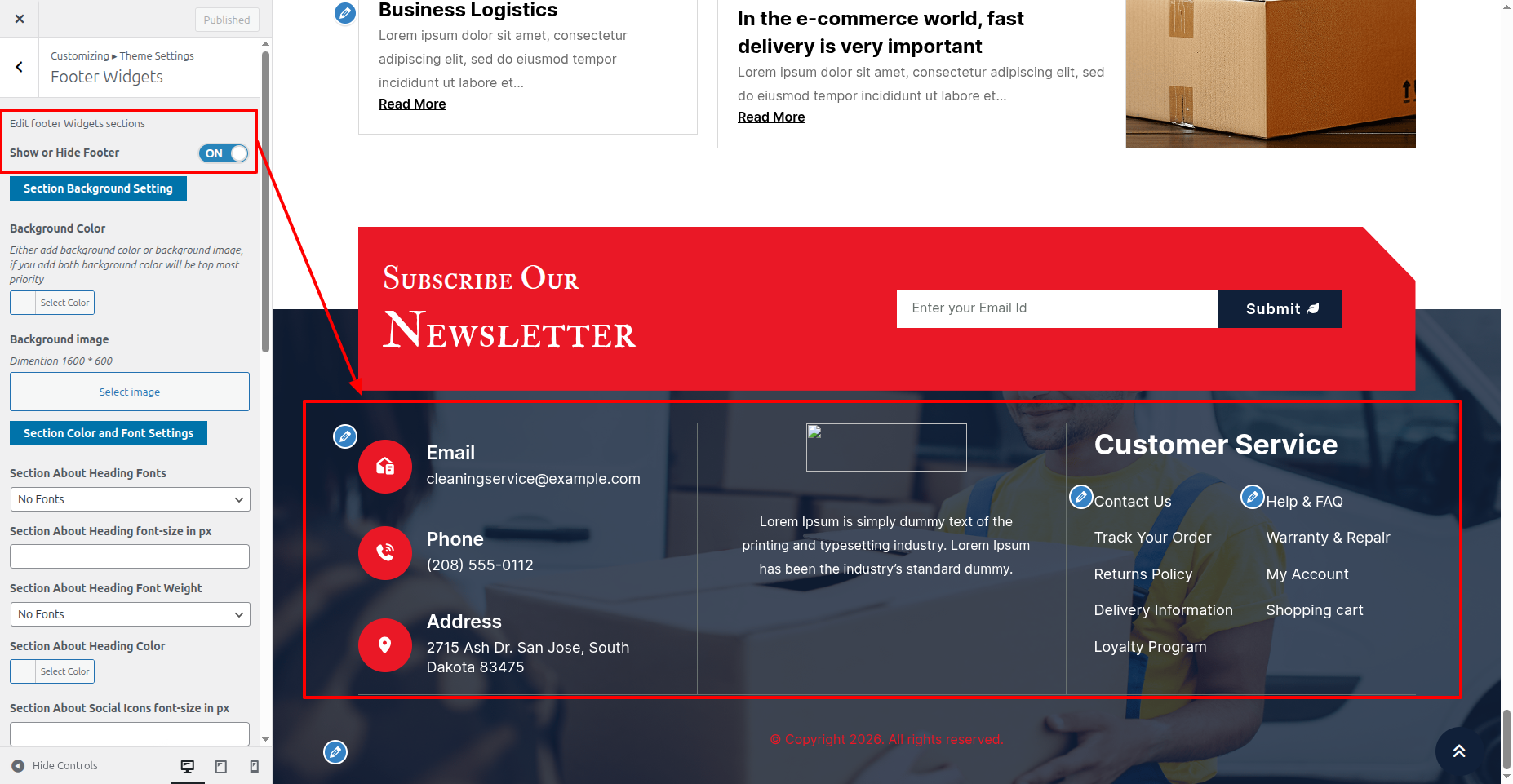
To proceed with the Footer Section.
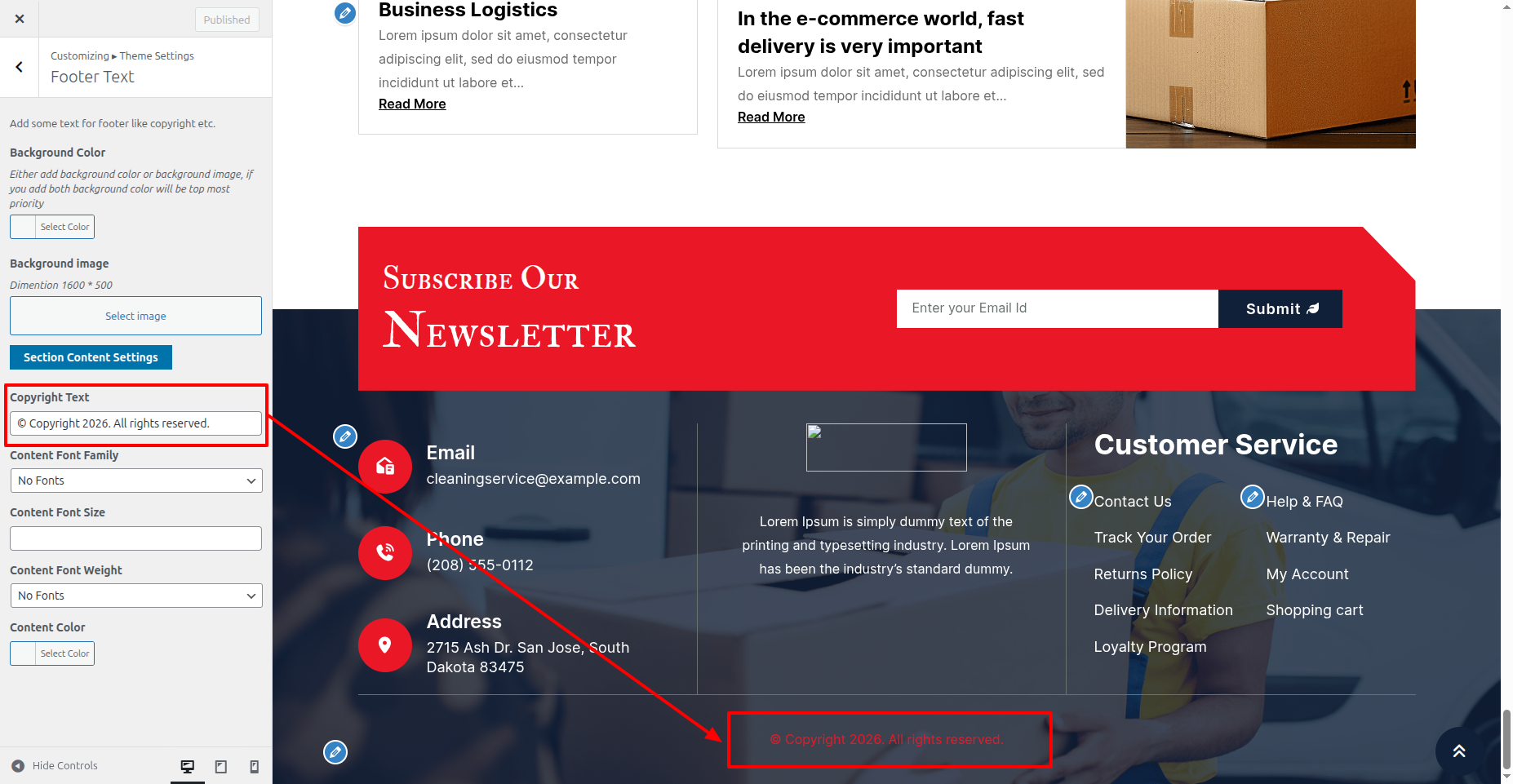
Go to Appearance >> Customize >> Theme Settings >> Footer Menu